



New Sales & Rent Comps Interface
Hey everyone, Anton here.
We just launched a brand new interface for your sales and rent comps.
So I want to just quickly walk you through what’s possible now.
And I want to start by emphasizing how important it is to include things like sales comps, rent or lease comps in your packages and in your websites and deal marketing.
So we are striving to make the interface as quick and efficient and as flexible for you as possible.
So this is precisely the reason for the new interface.
Access Sales & Rent Comps
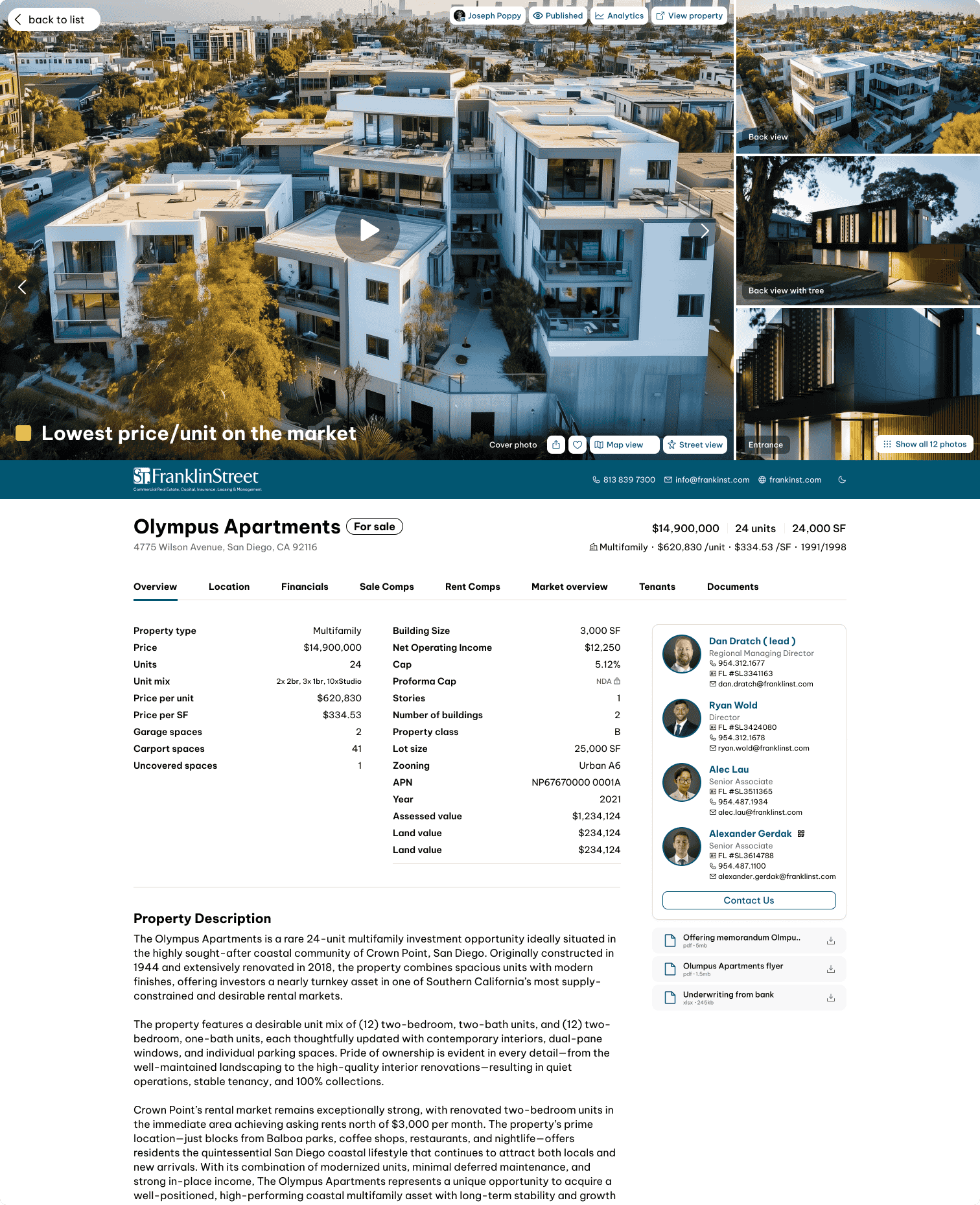
Now you can access sales and rent comps for each deal directly in the deal dashboard.
So now in the sales comps you’ll see a map and you’ll see a table.
And what you can do now is you can simply enter the data in the table.
You can even copy paste the whole table there.
So if you have a list of comps in a spreadsheet or in some other form, you can simply copy and paste the data directly into this table.
The system will recognize the mandatory and most important data points such as:
- Address
- Sale date or close of escrow date
- Sale price
Other fields or data points are optional:
- Number of units
- Unit mix
- Year built
- Cap rates
- Other data points you may choose to include
Adding Property Images
You also have the image here in the first column.
So we can add an image simply by clicking on the image.
You can use street view.
You get a nice angle of the property.
You can save it as your image.
You can also use the satellite top view if that’s better.
Or you can use your own photo.
So you can upload your own photo here and get the photo for your comp in the system this way.
Unit Mix
So we have the photos, property name, address, number of units.
We also have the unit mix that you may or may not want to add.
So once you click on the unit mix, you can define how many units.
You can choose how you want to do the grouping.
Whether it’s based on floor plan or based on something else like number of bedrooms.
You can also copy paste data directly into this table.
So the data entry has become very accessible now.
Rent Comps
Very similarly for rent comps, we have a table that includes:
- Image
- Name
- Address
- Unit mix
- Average square footage
- Rents
- Other data
Flexible Table Controls
Now note that this table is very flexible.
So you may choose to move the columns around.
You may choose to hide certain columns.
And you can even add new columns.
So you can create a custom column for a data point that you would like to track for your comps.
So all of this is very flexible.
Ways to Add Comps
Ways to get comps into the system:
Copy Paste
You can simply copy paste directly into this table.
Create Comps One by One
You can create comps one by one.
Map View
You can use the map view.
So you can look on the map and use various filters.
You can even use a polygon to isolate a specific part of the city and look for comps in that particular polygon.
AI Suggested Comps
You can still AI suggest and use the system’s comps.
This data is licensed mostly for multifamily and residential.
So you can have the system AI suggest comps based on key characteristics.
Upload Comps
You can still upload comps.
Uploading both sales and lease comps through PDFs and spreadsheets is supported.
But given the table functionality here, it has never been easier than to just paste the data directly.
So this is a major benefit for the speed of the process.
Comp Library
Now you can centralize all your comps in the system and manage them.
If you go to properties comp library, you have a library of comps shared across your entire organization.
So you can import them in bulk.
You can do the import on a particular property.
And you’ll have an option to either include all the comps you just imported for that deal or just add them into the library and use them later.
You’re going to see:
- Comps in your library
- System default comps
And you can choose which ones you want to attach to your deal.
So this data is centralized across your whole team.
Brochure Builder Integration
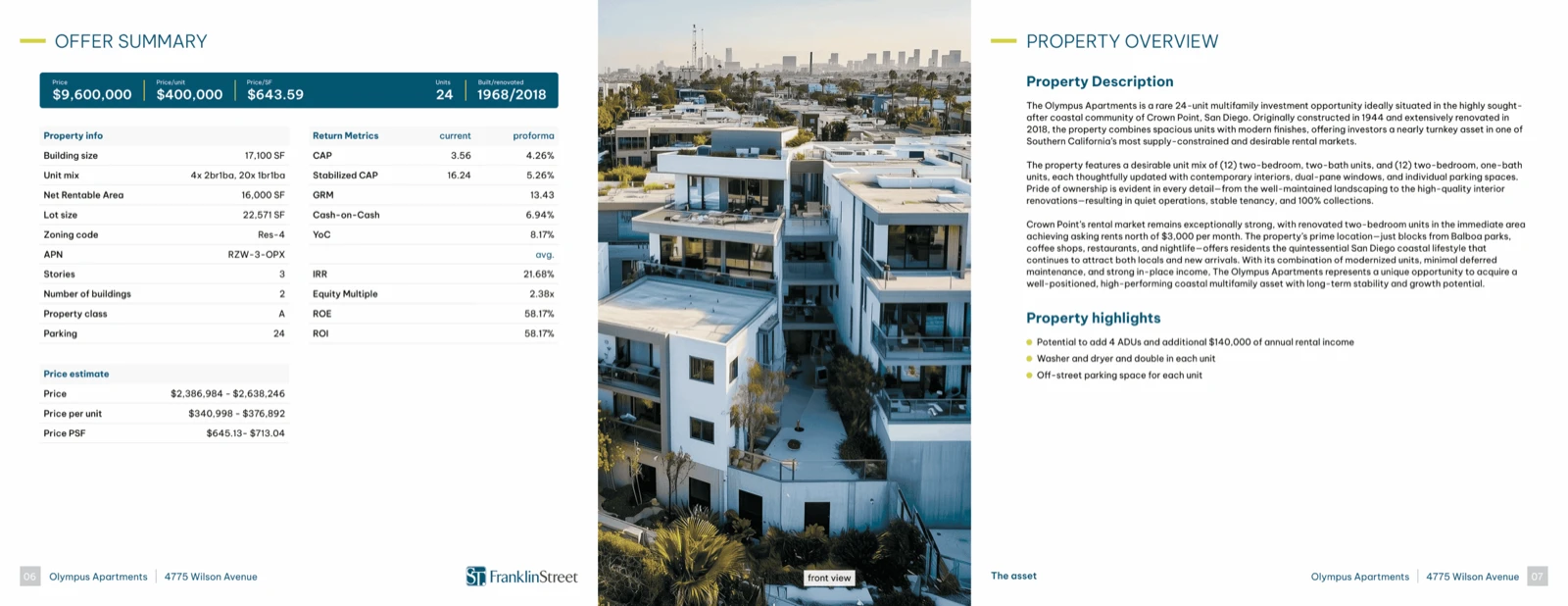
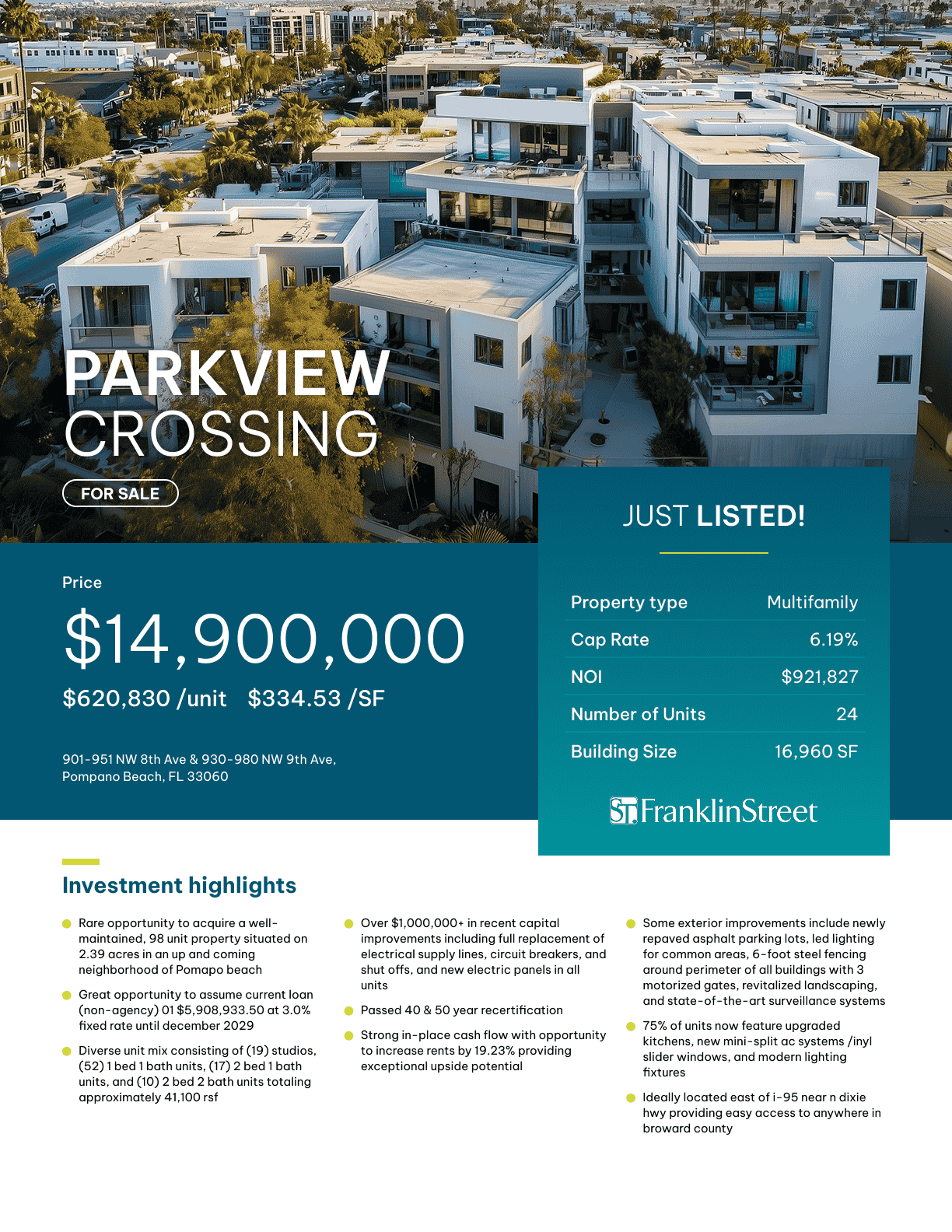
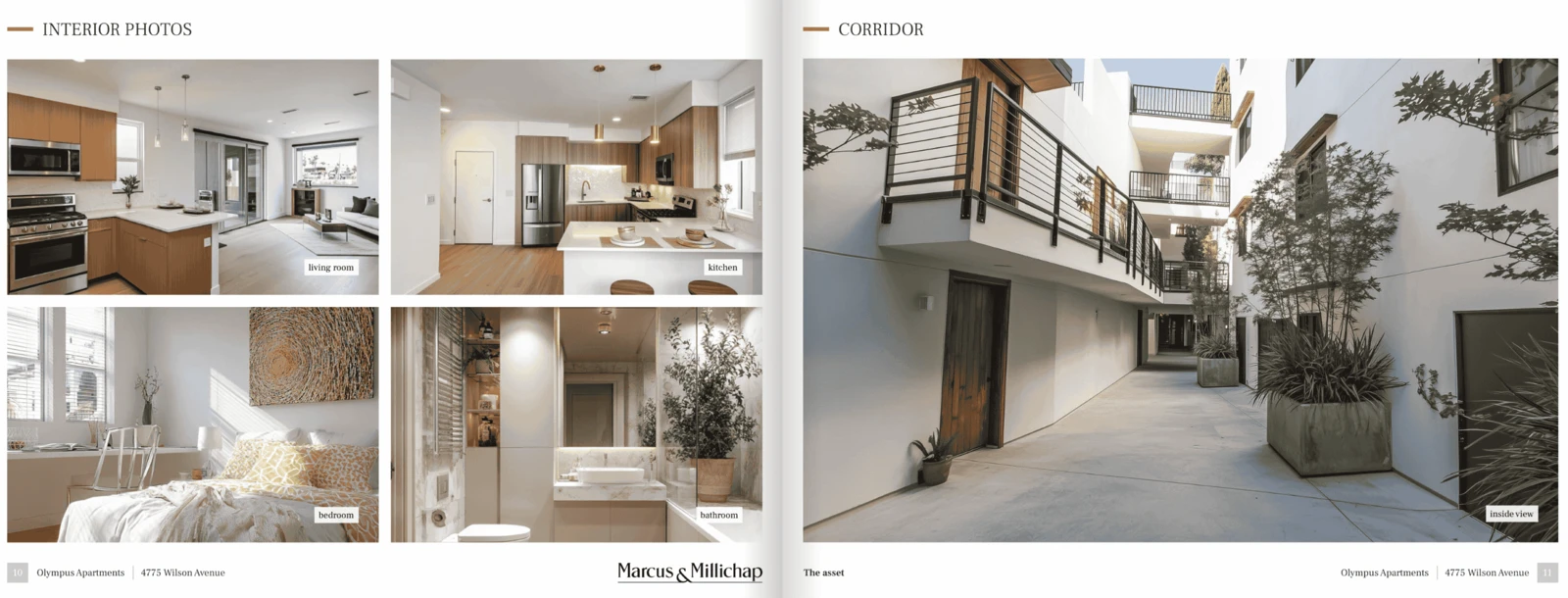
Finally, once you’re ready to generate a brochure for your deal, let me go back to my deal and to the brochure builder.
You’ll see that sales comp and rent comp or lease comp data is automatically flowing into the brochure.
Sales Comp Controls
You have further options here in the sales comps section to decide whether you want to include:
- The automatically generated map showing the position of the comps relative to your property
- The summary table
- Specific data points
For instance, if you don’t want to show cap rate, you can simply disable that column.
Chart Controls
The system automatically creates charts such as:
- Price per unit comparison
- Price per square foot
- Cap rate
- GRM
Let’s say you don’t have enough data for GRM.
You can simply disable the GRM chart.
You can also disable the cap rate chart.
So you can control it like this.
Detailed Comp Profiles
You also have rent comps detailed.
This shows the details of your sales or rent comps.
Each comp can be opened where you can:
- Add more data
- Add property descriptions
- Add attachments
You can also search comp data online.
This does a quick online search for data points that may help enrich the comp information.
One comp can be both a lease comp and a sales comp.
For sales comps, what’s mandatory is:
- Close date
- Sale price
- Address
For rent comps, what’s mandatory is:
- Basic unit mix information
- Basic in-place or market rent information
Everything else is optional for you.
Final Thoughts
So we hope you like the new interface and the speed and efficiency it can provide.
Especially when it comes to entering the data for your comps and having the data in a form and structure that is aligned with your process and the type of deals that you’re working on.
So excited.
And do let us know your feedback.
See you in the next feature update video.