

Connect IntellCRE to Claude, ChatGPT, and Codex
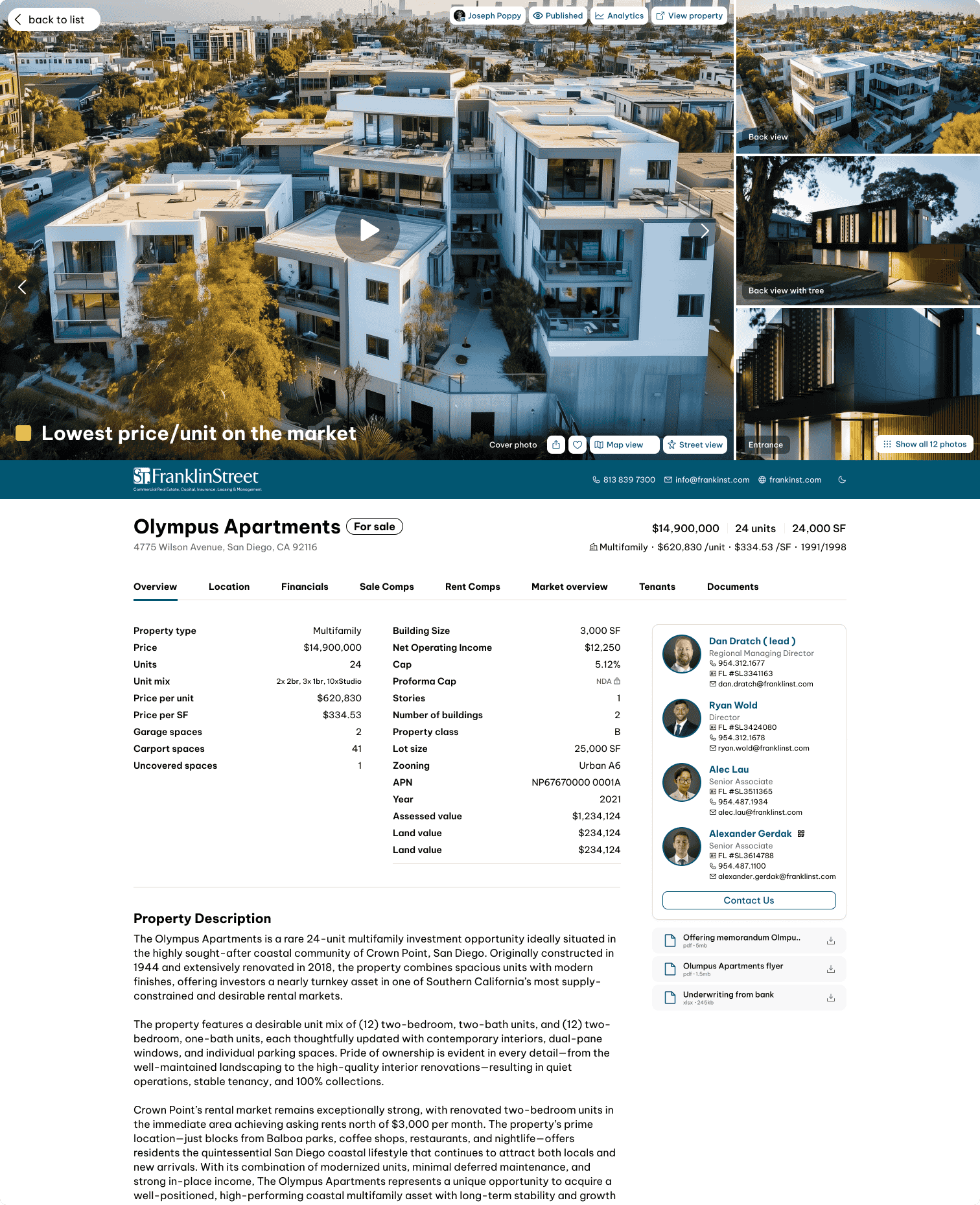
The IntellCRE MCP connector gives an AI assistant secure, permissioned access to your pipeline — properties, unit mixes, tenants, comparables, and the full brochure builder — so you can work on real deals in plain language instead of clicking through screens.
What it is
MCP — the Model Context Protocol — is an open standard for connecting AI assistants to external systems. IntellCRE runs a hosted MCP server, so any compatible assistant can act inside your IntellCRE organization on your behalf, with the permissions you grant and nothing more.
Once connected, you can ask for things like:
- “What’s in my pipeline in Phoenix?”
- “Pull the unit mix and current rents for the Camelback property.”
- “Add these four sale comps to that deal.”
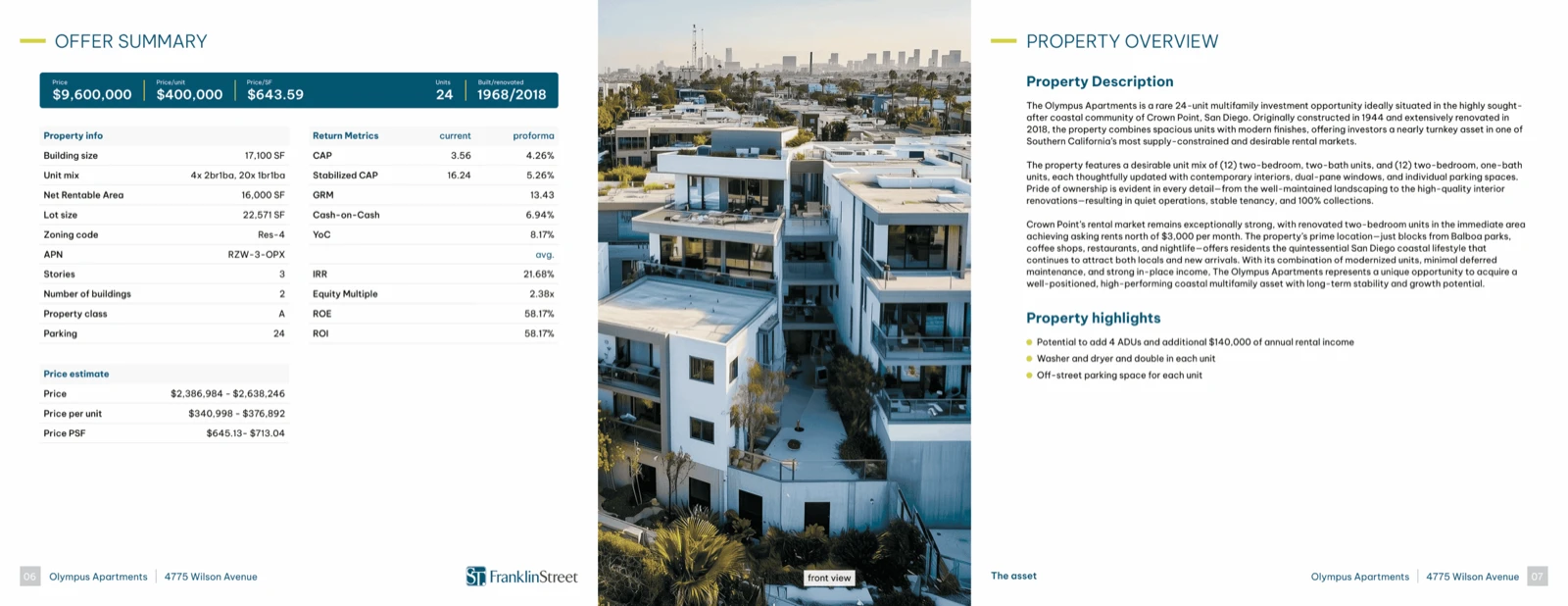
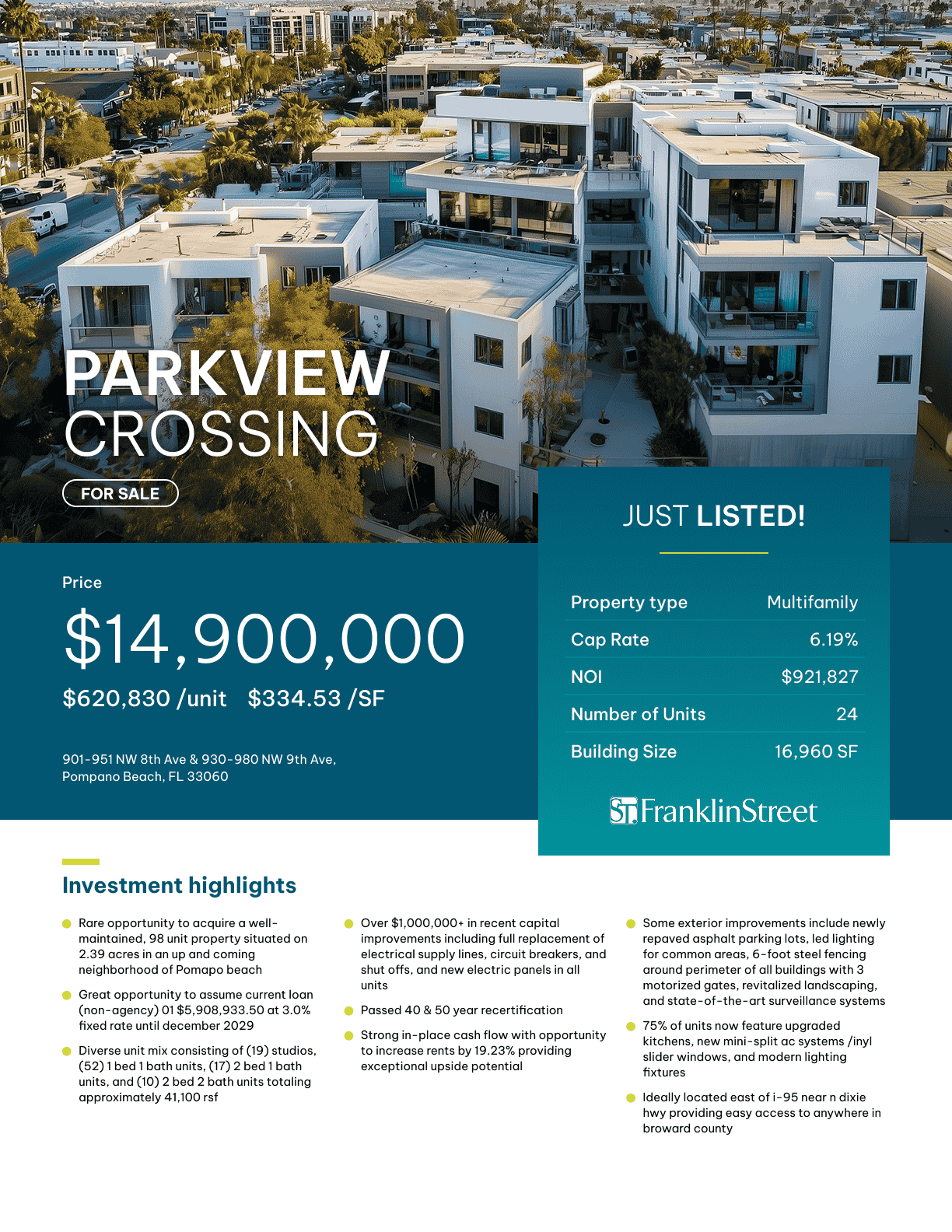
- “Build a brochure for 1420 Industrial Way using our standard layout, then generate the PDF.”
The assistant reads and writes real IntellCRE data. It is not a chatbot bolted onto the marketing site — it is the same data your team works in every day.
Before you start
- An IntellCRE account with access to the organization you want to connect.
- An assistant that supports remote MCP servers — Claude, ChatGPT, Codex, or any MCP-compatible client.
- Nothing to install, and no API key to copy. Authorization happens through your normal IntellCRE login.
Your connection endpoint is shown in the app at Settings → Integrations → MCP, along with one-click setup helpers.
Connect a client
Claude
Claude connects to IntellCRE as a custom connector.
- In Claude, open Settings → Connectors and choose Add custom connector.
- Paste the IntellCRE server URL:
https://api.intellcre.com/mcp - Claude opens an IntellCRE sign-in window. Log in and review the permissions being requested.
- Approve. Claude registers itself automatically — there is no client ID or secret to create.
- Start a new conversation and ask Claude to check the connection. It will call
connection_statusand report the account and scopes it received.
ChatGPT
Add IntellCRE as a connector in ChatGPT using the same URL, https://api.intellcre.com/mcp, and complete the IntellCRE sign-in when prompted. Image uploads from the ChatGPT file picker are supported and route through upload_property_image.
Codex
The app generates a ready-to-run Codex plugin prompt for you. Open Settings → Integrations → MCP and copy the prompt, or configure the server directly in .mcp.json:
{
  "mcpServers": {
    "intellcre": {
      "url": "https://api.intellcre.com/mcp"
    }
  }
}
Any other MCP client
The server speaks streamable HTTP with OAuth. Most clients need only the URL and will discover the rest. For example:
openclaw mcp add intellcre \
  --url https://api.intellcre.com/mcp \
  --transport streamable-http \
  --auth oauth
Endpoint & authentication
IntellCRE implements the MCP authorization spec, so compliant clients can discover everything they need from the resource URL alone. Dynamic client registration is supported, which is why no client ID or secret is ever handed out.
| Setting | Value |
|---|---|
| MCP endpoint | https://api.intellcre.com/mcp |
| Transport | Streamable HTTP |
| Protected resource metadata | https://api.intellcre.com/.well-known/oauth-protected-resource |
| Authorization server | https://app.intellcre.com/api/auth |
| Authorization endpoint | …/api/auth/oauth2/authorize |
| Token endpoint | …/api/auth/oauth2/token |
| Client registration | …/api/auth/oauth2/register — dynamic |
| Grant types | authorization_code, refresh_token |
| PKCE | Required — S256 |
| Token delivery | Bearer token in the Authorization header |
An unauthenticated request returns 401 with a challenge pointing at the metadata document, which is how clients bootstrap the flow.
Permissions
Access is scoped. A client can only do what you approved at sign-in, and read and write are granted separately — you can connect an assistant in read-only mode and it will be unable to change anything.
| Scope | Grants |
|---|---|
properties:read | View pipeline properties, unit mix, tenants, comparables, images |
properties:write | Create, update, and delete properties and their related records |
brochures:read | View brochures, pages, styles, and generation history |
brochures:write | Create and edit brochures, run data fill, generate PDFs |
offline_access | Refresh the session without repeating sign-in |
Ask the assistant to check its IntellCRE connection. The connection_status tool reports the signed-in account and the exact scopes issued. If a write tool fails, a missing scope is the usual cause — reconnect and approve the write permission.
Tool reference
Forty tools across three surfaces. Read tools only retrieve data. Write tools change it and the assistant asks you first. Destructive tools delete and always require explicit confirmation.
Session
| Tool | What it does | |
|---|---|---|
connection_status | Read | Confirms the connected account and the scopes granted |
search | Read | Finds properties by name, address, city, or ordinary-language terms |
fetch | Read | Retrieves one property chosen from a search result |
Properties & pipeline
| Tool | What it does | |
|---|---|---|
list_pipeline_properties | Read | Pages through the organization pipeline |
list_property_unit_mix | Read | Unit or space mix with current and market rents |
list_property_tenants | Read | Tenant profiles and rent schedules |
list_property_comparables | Read | Sale or rental comps selected for a property |
list_property_images | Read | Images attached to a property |
create_property | Write | Creates a property; geocodes the address when coordinates are omitted |
update_property | Write | Updates selected fields on a property |
add_property_tenant | Write | Adds one tenant profile and rent schedule entry |
update_property_tenant | Write | Updates a single tenant entry |
replace_property_tenants | Write | Replaces the whole tenant list — omitted tenants are deleted |
add_property_comparable | Write | Creates a comp and adds it to the subject’s comp set |
authorize_property_image_upload | Write | Returns a short-lived, single-use upload URL for a local file |
upload_property_image | Write | Uploads an image supplied through the ChatGPT file picker |
delete_property_tenant | Destructive | Removes one tenant profile and rent schedule |
delete_property | Destructive | Deletes a property and its related data |
Brochures
The largest surface: a complete authoring API for IntellCRE’s brochure builder, including AI data fill and PDF generation.
| Tool | What it does | |
|---|---|---|
find_brochure_v2 | Read | Finds brochures by brochure name, property name, or address |
get_brochure_v2 | Read | Metadata, styles, outline, page index, revision, lock state, editor URL |
get_brochure_page_v2 | Read | One page with its full module and style configuration |
get_brochure_v2_authoring_guide | Read | Explains how brochure JSON maps to rendered layout — read before redesigning |
get_brochure_v2_creation_options | Read | Built-in and saved outlines plus the saved-page-template library |
get_brochure_history_v2 | Read | Current undo/redo window |
list_property_brochures_v2 | Read | Brochure versions for a property |
list_brochure_organization_photos_v2 | Read | Reusable organization photos, searchable in plain language |
list_brochure_data_fill_executions_v2 | Read | Status and results of AI data-fill runs |
list_brochure_generation_executions_v2 | Read | PDF generation runs, with completed download URLs |
create_brochure_v2 | Write | Creates a guided brochure from a property, layout, style, and outline |
create_brochure_section_v2 | Write | Creates a section and its divider pages |
create_brochure_page_v2 | Write | Creates a predefined or builder page in a section |
update_brochure_v2 | Write | Updates name, authors, global styles, or the section/page outline |
update_brochure_page_v2 | Write | Replaces page modules, style overrides, or predefined settings |
duplicate_brochure_v2 | Write | Duplicates a brochure with its pages and media |
set_brochure_style_image_v2 | Write | Sets a style image from an upload or organization photo |
start_brochure_data_fill_v2 | Write | Queues AI-assisted filling for selected text or table modules |
submit_brochure_pdf_generation_v2 | Write | Submits a PDF generation job from current brochure state |
delete_brochure_style_image_v2 | Destructive | Removes a brochure style image |
delete_brochure_page_background_image_v2 | Destructive | Removes a page background image |
delete_brochure_v2 | Destructive | Deletes a brochure and all its pages |
How it behaves
You confirm before anything changes
Every write tool instructs the assistant to show you the values and ask before proceeding. Destructive tools require explicit confirmation. Take particular care with replace_property_tenants, which replaces the entire tenant list — any tenant omitted from the call is deleted, so the assistant should show you the complete list first.
You never handle identifiers
Refer to deals the way you actually talk about them — “the Camelback property”, “1420 Industrial Way”. The tools are built to resolve names through search and find_brochure_v2 rather than asking you for an internal ID.
Large lists are paged
Pipeline listings return a nextCursor. A well-behaved client keeps calling until the cursor is null, so ask for “all” of something and let it page through.
MCP tool arguments cannot carry file bytes. For a local image, the assistant calls authorize_property_image_upload to get a short-lived, single-use URL, then POSTs the raw bytes to it. The URL grants exactly that one upload and then expires.
Troubleshooting
| Symptom | Cause and fix |
|---|---|
| A write tool fails or is refused | The connection is missing the matching :write scope. Reconnect the connector and approve write access. |
| Assistant can’t find a property you know exists | You are likely connected to a different organization. Run connection_status to see which account is attached. |
| Repeated sign-in prompts | offline_access was not granted, so the session can’t refresh. Reconnect and approve it. |
| Connector won’t add at all | Confirm the URL is exactly https://api.intellcre.com/mcp and that your client supports remote MCP servers over streamable HTTP. |
| An image upload fails | Upload URLs are single-use and short-lived. Ask the assistant to request a fresh one. |
Still stuck? Contact IntellCRE support with the assistant you are using and what connection_status reports.