

IntellCRE Updates: Photo Editor, Brochure Builder Version Two, Cover Page Fonts, and Custom Page Improvements
Hey everyone, Anton here. Happy Friday.
As some of you might already know, we’re preparing some huge launches in the upcoming weeks. Namely, Brochure Builder Version Two, which is going to be a brand-new interface that allows you to edit and customize your brochures with all the options that you were asking for. It’s going to be very intuitive and very powerful.
Before that launch, we’re actually launching Photo Editor and Photo Management.
Upcoming Photo Editor and Photo Management
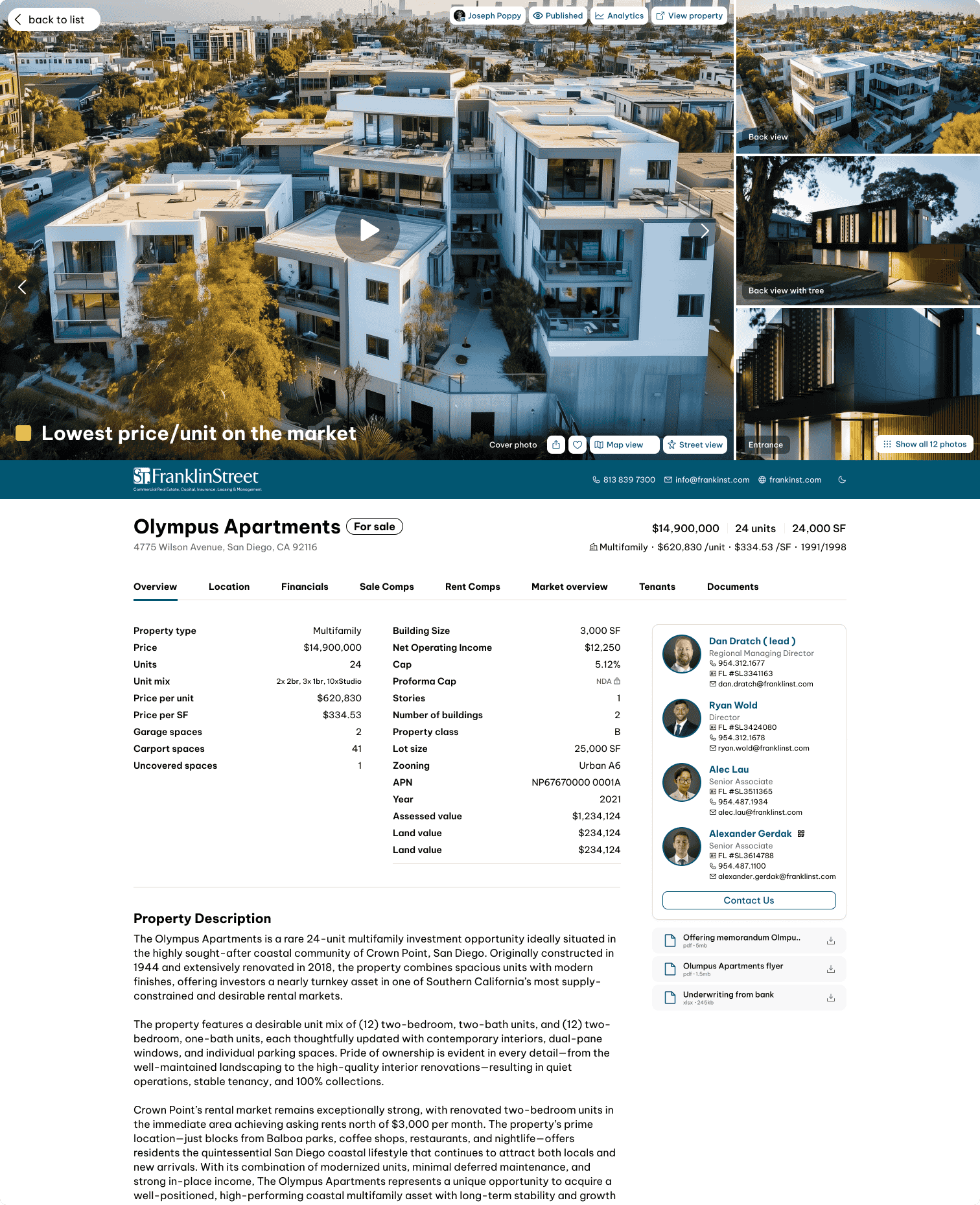
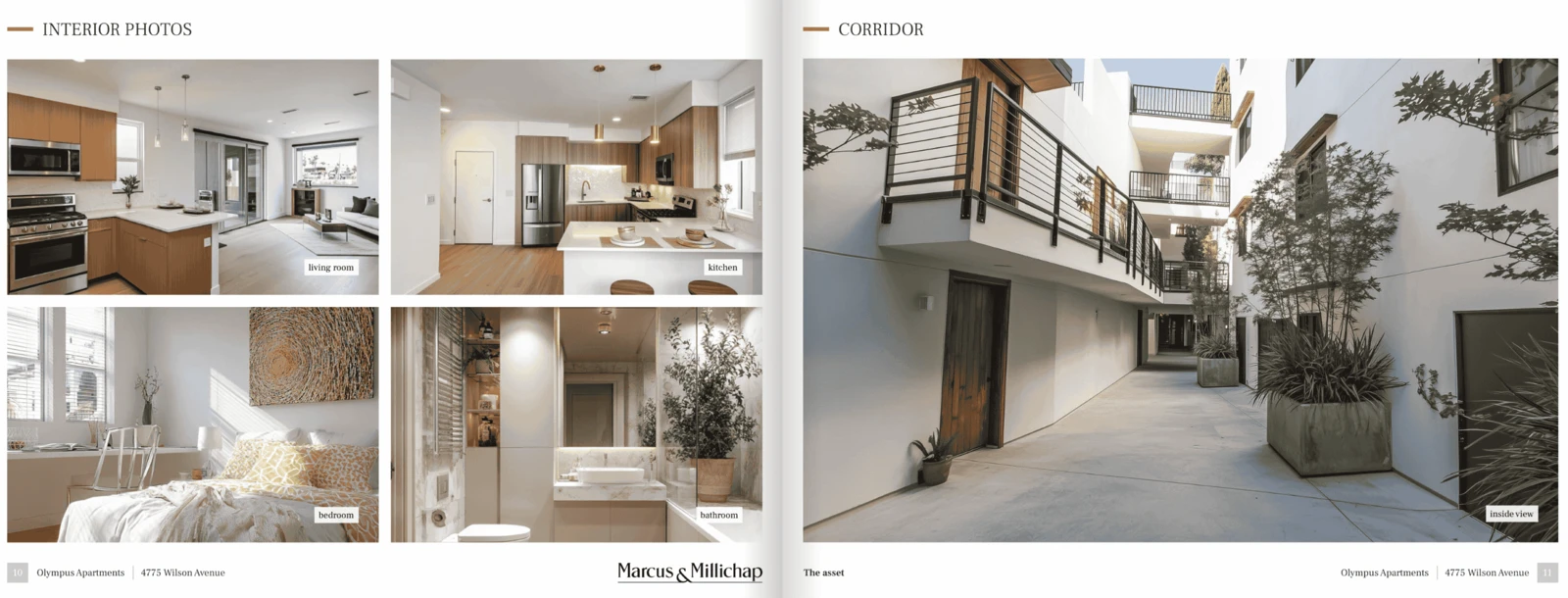
This is a brand-new feature for how you can edit, manipulate, and customize photos after you upload them into the platform.
You’ll be able to do things like:
- Crop photos
- Highlight your property
- Add other highlights
- AI enhance images
- Manage your photo library
Later, we’ll also add a library of stock photos that you can use across your marketing assets as well.
This is going to be launched roughly in a week, along with Brochure Builder Version Two.
We will also launch a brand-new flow for how you actually create properties on the platform and how you prepare for building a brochure for a property, enabling you to really just upload your data room and then move from the data room to the brochure. It is going to be a frictionless process—very simple and very easy.
Then, of course, you’ll be editing the brochure in the new interface.
So we’re very excited about that.
In the meantime, we’ve launched some updates and improvements that I want to walk you through today.
We’re going to be looking at:
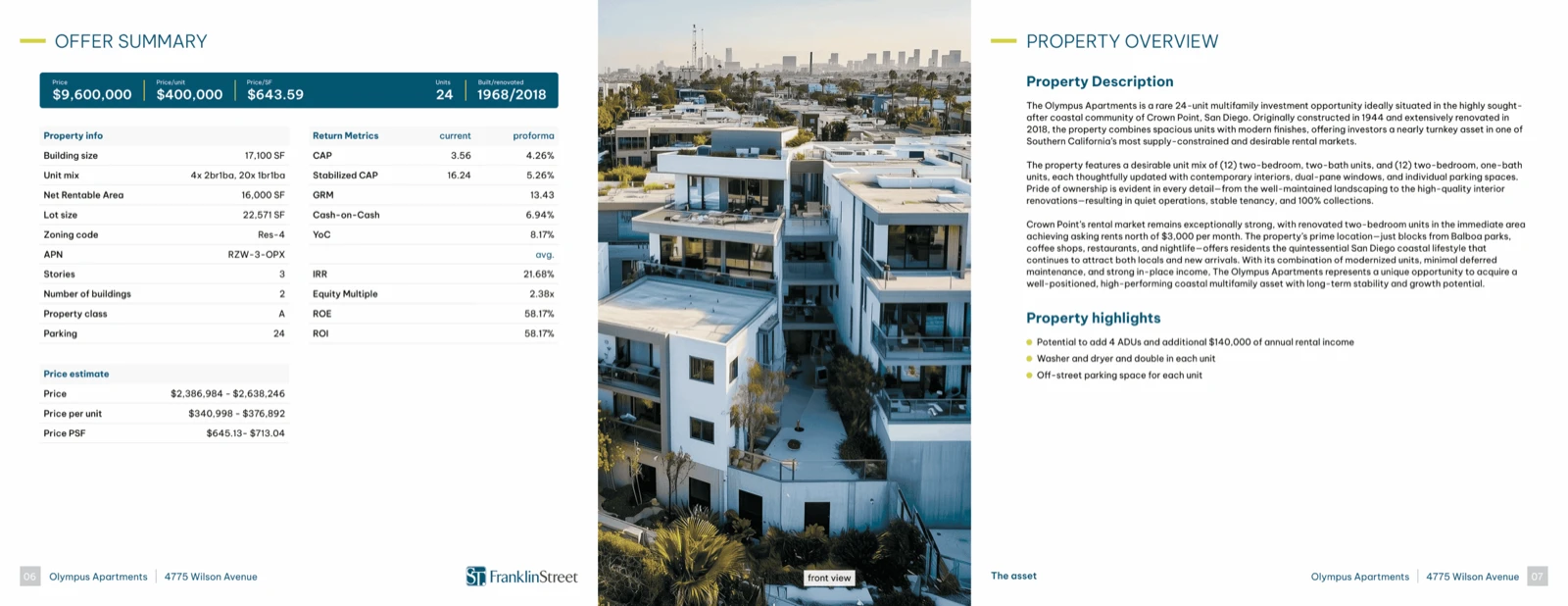
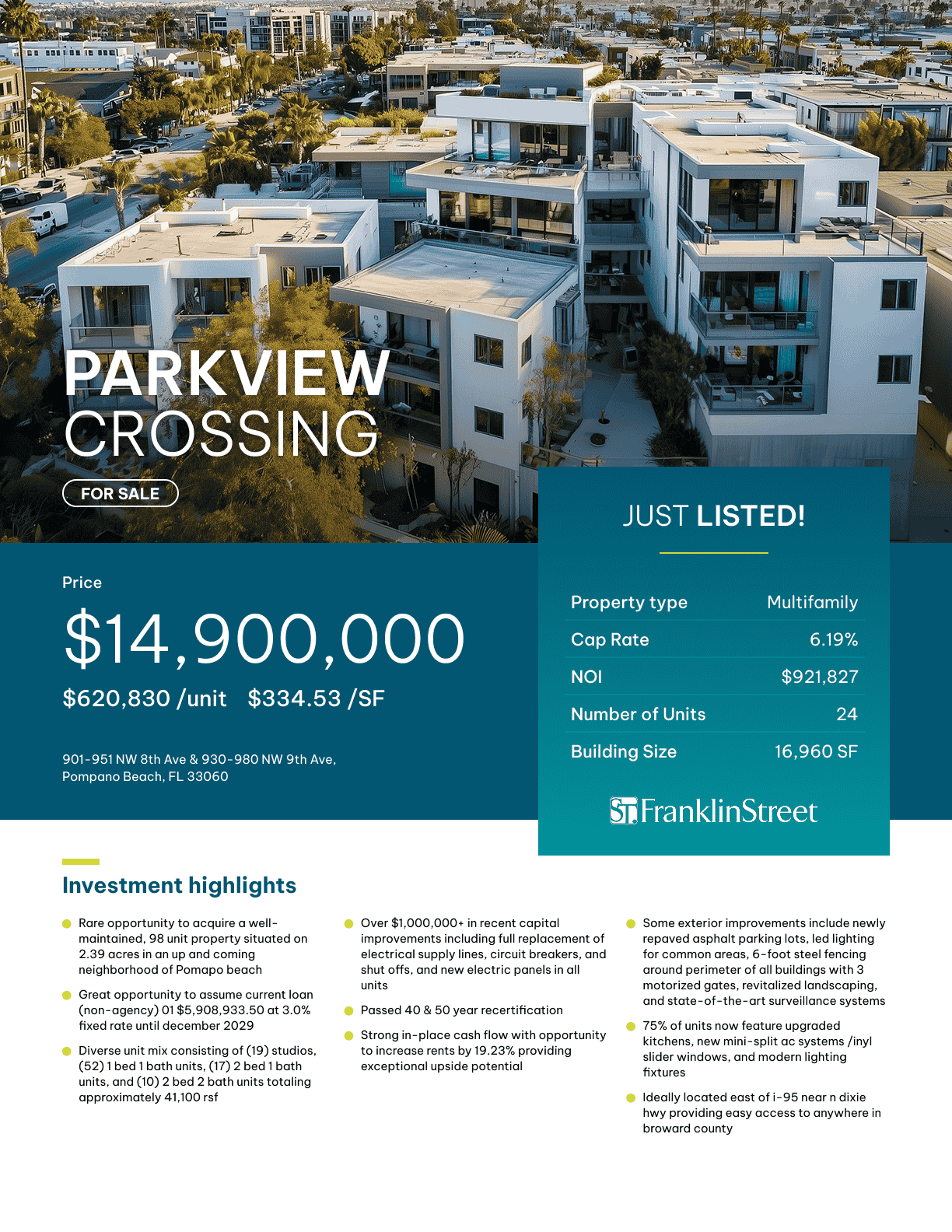
- Additional options for your cover pages, namely controlling the fonts of all the different text blocks on the cover page.
- Reworked custom pages and page templates, resulting in a more reliable workflow.
- New options for custom data points and custom columns for rent and sales comps.
So let’s get to it.
New Cover Page Font Options
Let us begin with the new cover page options.
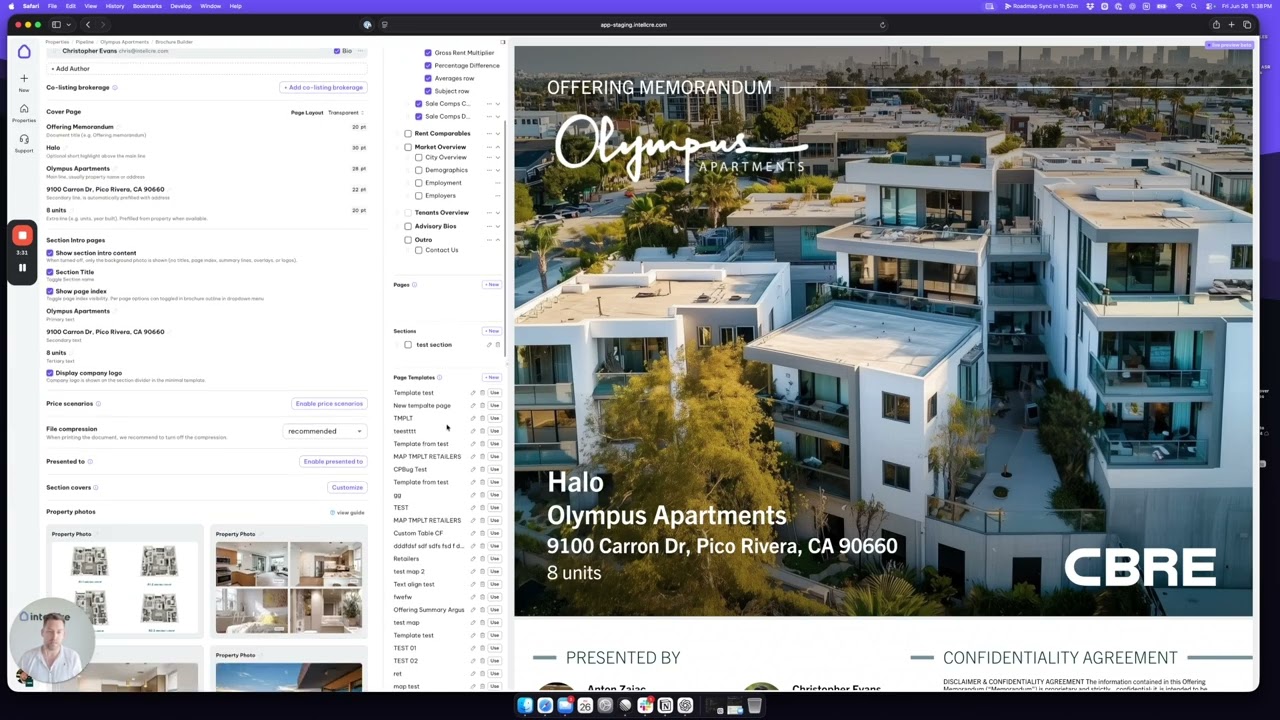
In the Brochure Builder, for a particular brochure version, locate the Cover Page Settings on the left side.
Now you can see that all of these text blocks have a font size associated with them.
The moment you start changing the font size, you’ll see the fonts of these text blocks changing.
For example, for the Highlights section, if we make the font smaller, you can immediately see those fonts updating.
So you can control the size of the fonts.
Of course, the fonts themselves are still coming from your design system—the font that you’ve set for your account.
These are the new cover page options.
Custom Data Points for Sales and Rent Comps
Now let’s quickly look at the options for sales and rent comp custom data points.
If we look at the Sales Comps table and want to include a different data point, we can simply add a column.
Let’s call it Column XX.
Now I have a custom column.
I can provide a custom value, such as X1.
Directly in this table, I can also customize the Average value and the Subject Property value for this custom column.
For example:
- Average: XA
- Subject Property: XB
You can do all of that customization directly here.
Now let’s look at how this appears in the brochure.
If we go into the brochure and include our Sales Comps section, you’ll also notice something new.
Clicking on a page or section in the outline automatically scrolls you to that location in the brochure.
Here you can see the custom column on the right side with the values that I provided.
Also note that in the Sales or Rent Comp summary tables, you can disable any of the default columns.
For example, if I don’t want to show Average Square Footage, I can simply disable that column.
So you now have more control over toggling various pieces of data on and off.
The same applies to Rent Comps.
You’ll also notice that if we add a custom data point—for example:
- Property value: X1
- Subject Property value: XB
Then inside the Property Information section, you’ll automatically have that same custom data point available for the subject property.
You can also add and edit custom values directly from there.
Reworked Custom Pages and Templates
Finally, we’ve reworked how Custom Pages and Template Pages work.
Everything now goes through page templates.
If you’re creating a custom page for a given deal and you like that page, you can make it a template.
If you also like the brochure outline you’ve created—for example, an outline called OM Wilson Apartments—then later, when you’re working on a new property and you load that outline, what will happen is that this custom page gets duplicated from the template into the new outline.
Once you start changing the data on that page, you’re not influencing, affecting, or changing the data of any custom page in any previous property you’ve worked on.
That’s the main rework.
This page is only visible within a given brochure version of a given property.
Even if you create a new brochure version and load the same outline, that custom page becomes a different page from the one in the previous brochure version.
This change prevents:
- Data mismatches
- Previous brochures being affected
- Previous properties being modified
This is a major improvement.
Ideally, any pages that you want to reuse should be turned into templates.
Name those templates in a way that makes them easy to reference.
Then, for every new deal, if you’re creating a similar document, you can either:
- Load an outline that already includes those template pages, or
- Start with any outline, add only the template pages you want as custom pages, and then add them into your brochure outline.
Wrapping Up
So those are some updates from our end.
Of course, we’re super excited about the upcoming launches.
Very soon you’ll see:
- Photo Editor
- Brochure Builder Version Two
- Several new NDA workflow features for Deal Vault
If you haven’t played with the Deal Vault feature yet, try exploring how you can:
- Link files to your listing or property websites
- Configure NDA workflows
- Use waiting rooms
- Require email access before viewing documents
Let us know what you think.
Thank you, and see you in the next video.