
How to Remove Blank Pages from Your Brochure
Introduction
Hey everyone, Anton here. In this short video, I want to look at ways to remove blank pages from your brochure. This is a very common question that we get, so I wanted to spend two minutes showing you precisely how you can remove blank pages from your brochure.
Why Blank Pages Appear
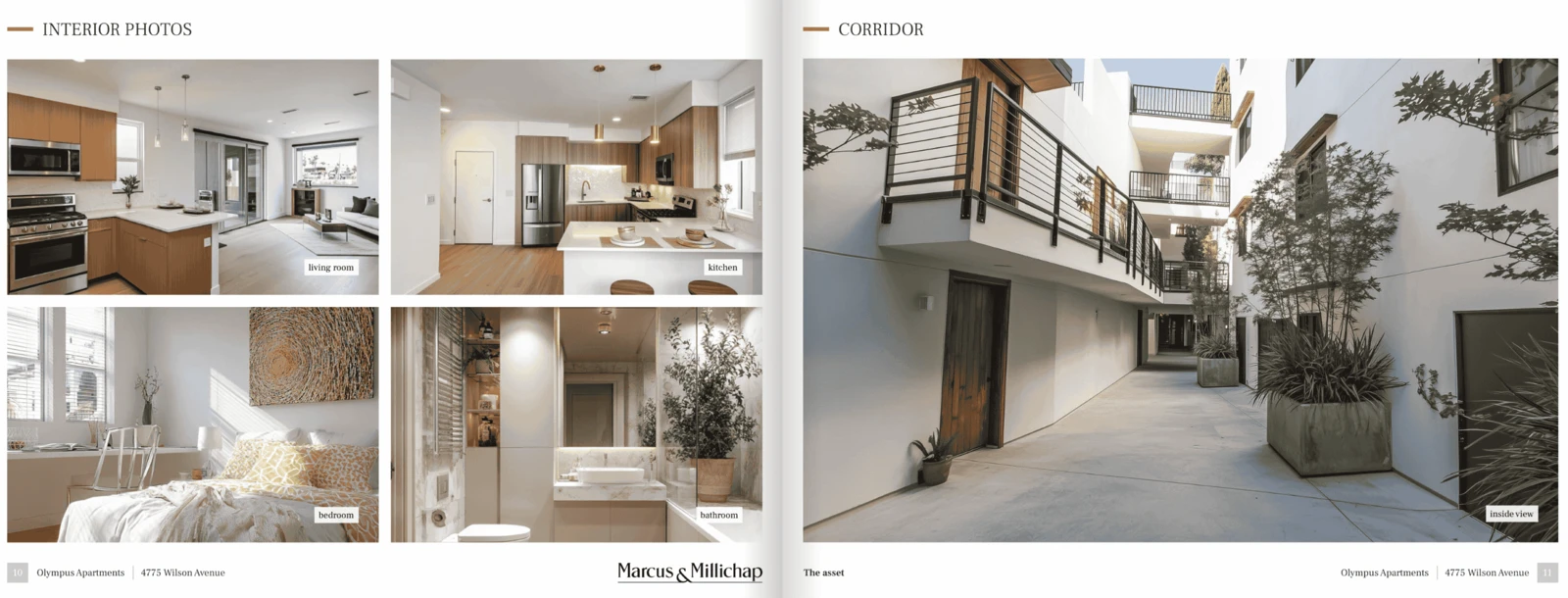
To begin, it’s very important to note that blank pages usually appear in the booklet document layout because the booklet has two pages per view, left page and right page.
If you have an odd number of pages in a given section, that will result in a blank page at the end of the section.
It doesn’t happen when you have a section with an even number of pages. For example, in the sales comps section, we have four pages, so four pages will span two double pages and this problem is not going to be there.
In the property section, we have an odd number of pages, so there’s going to be a blank page at the end of the section.
Option 1: Use Single Page View
The most obvious solution is using the single page view, as it doesn’t require an even number of pages in a section.
The easiest fix is to use the single page view.
Option 2: Add a Photo Page
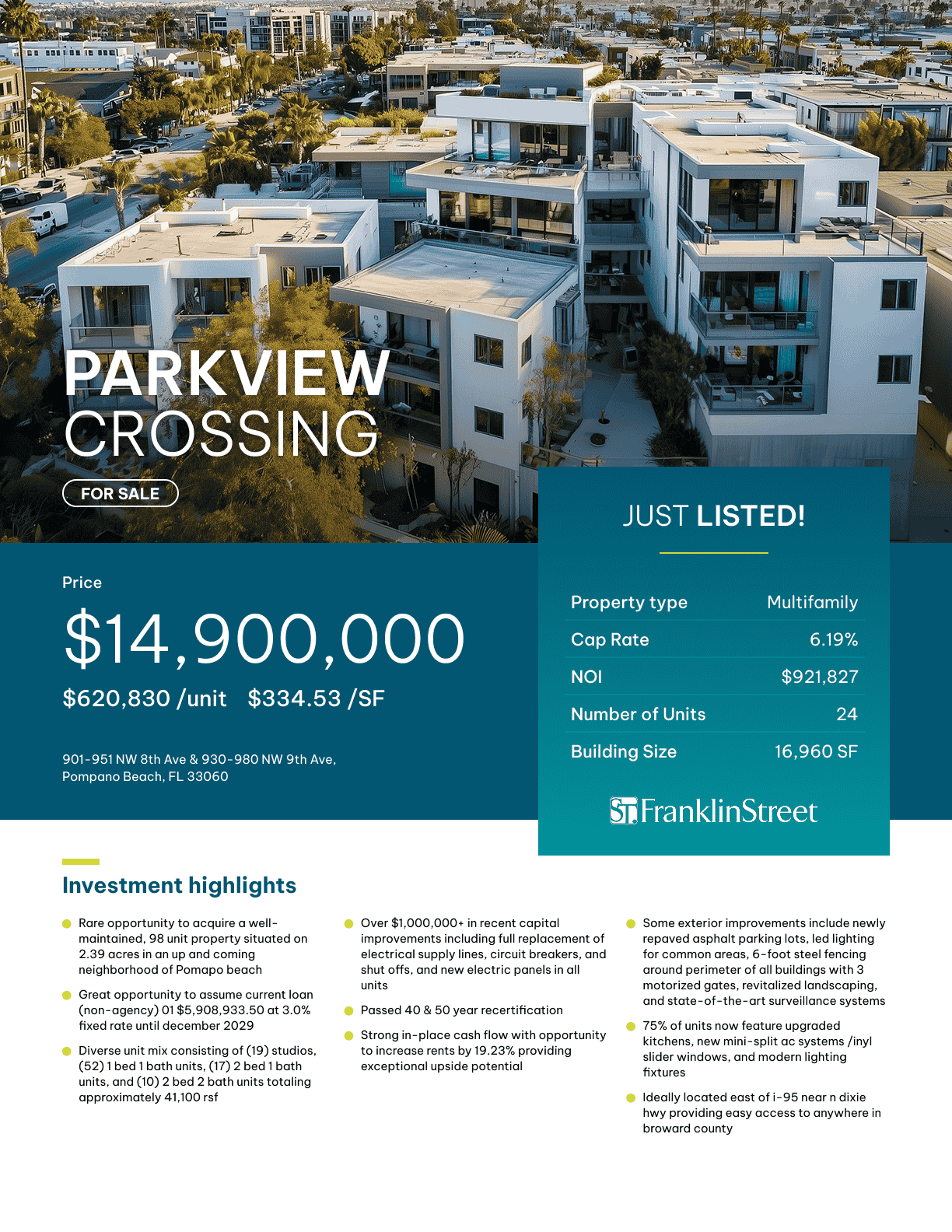
If you want to use the booklet and eliminate blank pages, you can add a photo as a custom page and place that photo in place of the blank page.
I’m going to add a page from an image, upload the image, create a page from this image, and place it right after the local map, which is after the area photo.
I take this custom page and place it right here. I’m effectively placing a photo page instead of the blank page, eliminating the blank page.
Option 3: Condense Content to Fit One Page
If you want to solve this without uploading a photo, look at the pages in the section and see if there’s a way to condense the content.
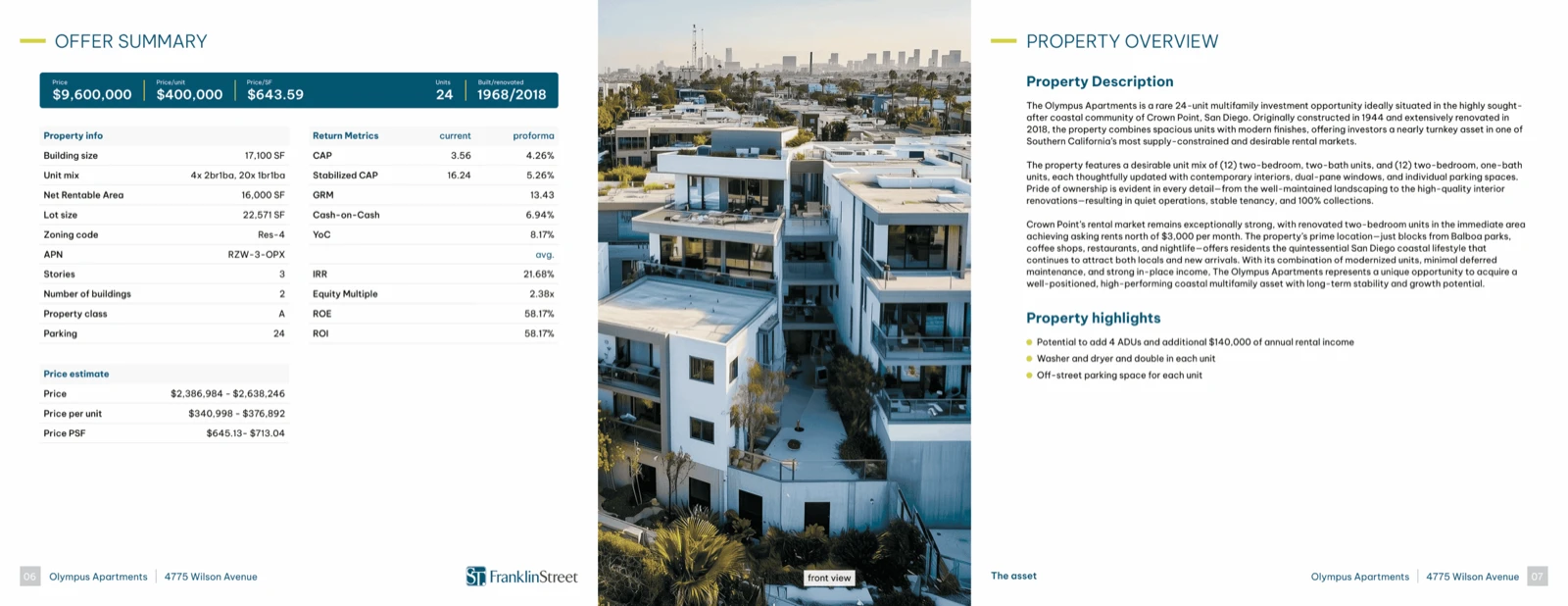
For example, in the about property page, the description and property highlights take a lot of space and overflow into two pages.
We can eliminate that by going to the property info and making sure the information fits on a single page.
I remove unnecessary highlights, shorten the text, restructure paragraphs, and remove spacing and empty lines.
Now when we go back to the brochure, the property overview fits on one page. The section now has an even number of pages, so there’s no blank page.
Option 4: Adjust Comps & Charts
If the blank page is in the sales comps or rent comps section and detailed comps are enabled, you may end up with an extra page and a blank page.
You can use a photo page, reduce the number of comps, enable graphs, or adjust content to maintain an even number of pages.
Option 5: Adjust Advisory Bios
For advisory bios, if you have three advisors, that creates three pages, which leads to a blank page.
You can remove one advisor, add a photo page, or use single page view.
Option 6: Page Builder Adjustments
If you’re building a page using the page builder and content doesn’t fit on one page, you should reduce font size and row height.
For tables, use smaller row height. For text blocks, reduce font size, remove line breaks, and condense spacing so everything fits on one page.
If content still requires multiple pages, that’s fine, but when possible, condense it.
Option 7: Group Photos
If you have multiple photo pages creating an odd number of pages, you can group photos into grids to reduce the number of pages.
Summary
If you use single page view, you can have even or odd number of pages and won’t have blank pages.
If you’re using booklet view, you need an even number of pages in each section to prevent blank pages.
You can add a photo page, condense content, adjust comps, group photos, or restructure pages to maintain an even number of pages.
Closing
Those are all the options. We hope that this tutorial is helpful and see you in the next one.