

Using Icons in the IntellCRE Brochure Builder
How to Add an Icon Module
Hey everyone, in this tutorial, we’re going to discuss everything that you need to know regarding icons and how to use the icon module in your brochures to make it visually pleasing and more premium.
So, first of all, how do we add an icon module?
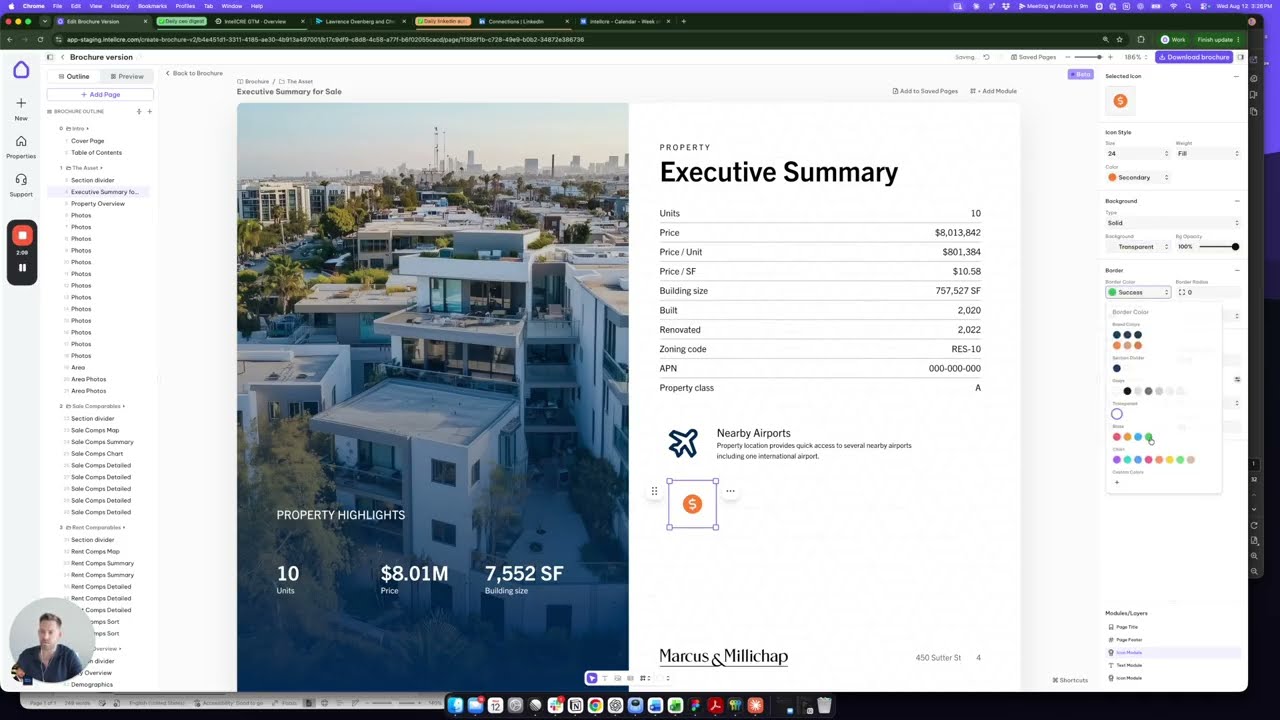
You simply go to Add Module and choose an icon.
Then you can place the module somewhere on the grid.
You can use the selection on the top right here to basically choose the icon that you’re looking for.
You can also search. Start typing the word that describes the icon, such as “money,” and you will see these various icons that are getting suggested, such as, for instance, this one.
Icon Module Options
Each icon module has several options.
First of all, you can control the size.
I can make this smaller, I can make this larger, and so on.
Then there is the weight, so how thick the lines are in the icon.
You can choose between bold, thin, regular, duo tone, and so on.
I’m going to keep this bold and also fill version right here.
You can also choose the color up here.
You can play with the colors.
You can choose to include a background.
If we do a solid background, that’s going to be yellow. That’s going to provide a background to the entire module, the same way that we have background for any other module.
Same thing with background opacity.
Same thing with border.
If we’re adding a border of a certain color, you’ll see that the module is going to have a border.
Layout Options
Finally, the layout options.
Depending on how big the icon is, we can make the size of the module smaller like this.
But you can also control the padding.
So if we want to add horizontal padding or add vertical padding, we can definitely do that.
You can also control the position of this module, as well as the width and height of the module.
If you want this to be a square, we’re going to have width seven and height also seven.
But you can also type into here.
So if I type and change the size like that, I can also do that in that way.
Creating Lists with Icons
Now, once you have an icon such as this one, I’m going to duplicate it.
You can usually use this when you have a list, such as a bullet list, and instead of bullets, we want to use an icon.
Or you have some key facts or something like that.
Like in this case, we want to signify that there are nearby airports.
So we can create a bulleted list using the Ctrl+C, Ctrl+V functionality.
I’m going to first make sure that this is aligned in the way that I want it aligned with the other elements on the page, that there is enough padding here, and that the style of this text block is the style that I want.
If I want to have more of these, I’m going to select this and, while holding Shift, I’m going to select this as well and do Ctrl+C, Ctrl+V.
Here I’m going to place another module, or Ctrl+V, and place another one.
I can keep adding them like this.
If you want to make sure that these are aligned, clicking on the module, you see the X position of the left top corner.
That’s 96, and here the X position is 97.
So I can adjust this to 96 to make sure that these are horizontally aligned.
And I can do the same here.
Like that.
So you can create key facts or a list with icons like this.
Using Icons with Numbers
Now, suppose I want to add icons to the left side of the screen.
I can just take the same icon and place it maybe on top of these numbers, and I’m going to actually make it slightly smaller.
So I’m going to decrease the icon size to maybe 24.
Then I want to make sure that the icon is aligned with this number here.
Maybe something like this.
Now I’m going to change the color to white, so this is nicely visible.
And I can use the icons over here as well.
Just like that.
Customizing Icons
So, that’s it.
Icons are pretty easy to use.
If you need to add an icon module, you go to Add Module, select an icon, then you can select here.
You always see your selected icon.
I’m going to click the X.
I don’t have any icon selected now, and I can select a different one.
You can control the style of the icon fully — colors, paddings, borders, all of that.
And that is it.
So this is how we can work with icons.