

New Updates to the Brochure Builder
Hey everybody, Anton here.
Happy Wednesday. I’m bringing you new updates that you should know of.
In fact, I’m recording this video for the second time because right after I created the first one an hour ago, I learned that there are two or three more features that are already live for you.
So, I have to record this new video now.
Sale and Rent Comp Pages Migrated to the New Builder
First thing, we’ve migrated the sale and rent comp pages to the new builder.
This means that whenever you have a deal with comps that you upload or have AI-suggested or something like that, and you start creating a brochure where sale or rent comp sections are included, these pages will automatically generate for you as before.
But the difference, as you can see here now, is that this is actually a new brochure builder native page, meaning that the data is in a table that you can fully customize, including every aspect of everything else on the page.
First thing to note: every cell now can have three types that we can see on the top right — Content Type option here.
It could be plain text, rich text, or an image.
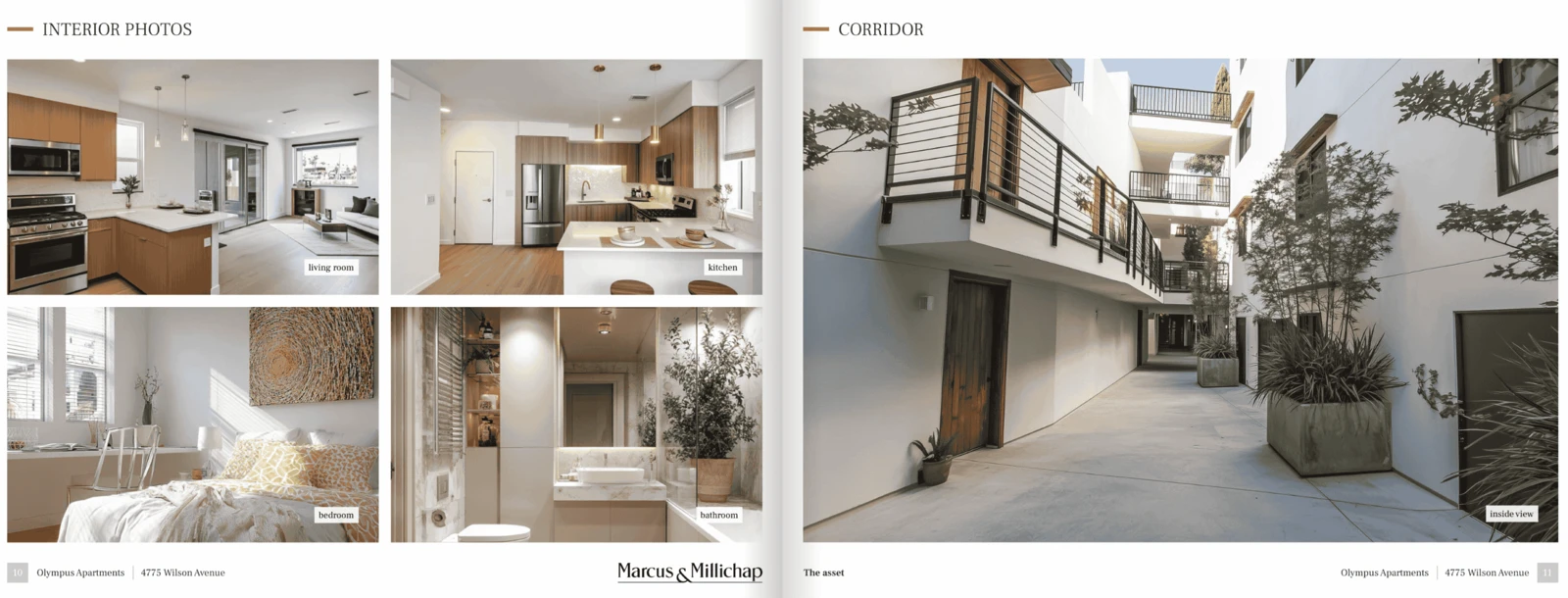
These photos here are an example of image cells in a table.
This doesn’t just apply to comp summary tables, but to any table. So you can now include images into tables.
The second thing to note is that any cell text, if you switch it from plain text to rich text, you now have all the customizability options of the rich text.
Maybe I’m going to make this purple. I’m going to align it in the center. I’m going to change the font weight to make it bold.
As you can see, I’m basically editing the table as I can edit any other table in the new builder, including things like adding rows, deleting columns, adding columns, and things like that.
So, first big news: all the comp pages, and this also applies to the detailed sale pages you see now, this is an image, this is a table, this is a module text, are fully editable in the new builder.
Editing Multiple Modules at Once
The second thing has to do with how quickly and easily you can build new pages in the new builder.
For that, I’m going to use this page to demonstrate.
In particular, we have added the options to control and edit multiple modules at once.
When you click and select a certain module, and then you hold Shift on your keyboard and select another one, we now have selected the group of two modules.
I can hold Shift and select the third one, and now we have a group of three.
Now you can move this group together, either by grabbing the handle and moving it or using the arrows on your keyboard.
Arrow up, arrow down, arrow right.
You can move these modules by one pixel, which is very useful.
Copy and Paste Modules
You can also use Ctrl+C and Ctrl+V on a module or a group of modules.
When I hit Ctrl+C and then I hit Ctrl+V, now I’m basically pasting the same group of modules onto the page.
This is super useful when you are building a page and you have something that you want to copy or duplicate on the page.
We’ve also added the option to use Ctrl+Z to undo any changes.
So now, when I hit Ctrl+Z, I’m undoing my last action.
And this applies to all the actions I’m doing here.
The long-awaited Ctrl+Z undo functionality is finally live.
New Add Page Dialogue
Another thing you should know about is, as I’m talking, we’re just releasing newer and newer versions of the platform.
We’ve also changed the Add Page dialogue.
Now, when you click Add Page to add a page to your brochure, you will see that we have several categories.
We have Blank Pages, and here is where we’re going to keep putting quick layouts.
Maybe you need a tombstone-type of page. Maybe you need some key facts or bullet points, or maybe text in two columns, or a photo grid.
All those quick layouts are going to be available here for you in the Blank Pages.
Smart Pages
Then we have Smart Pages.
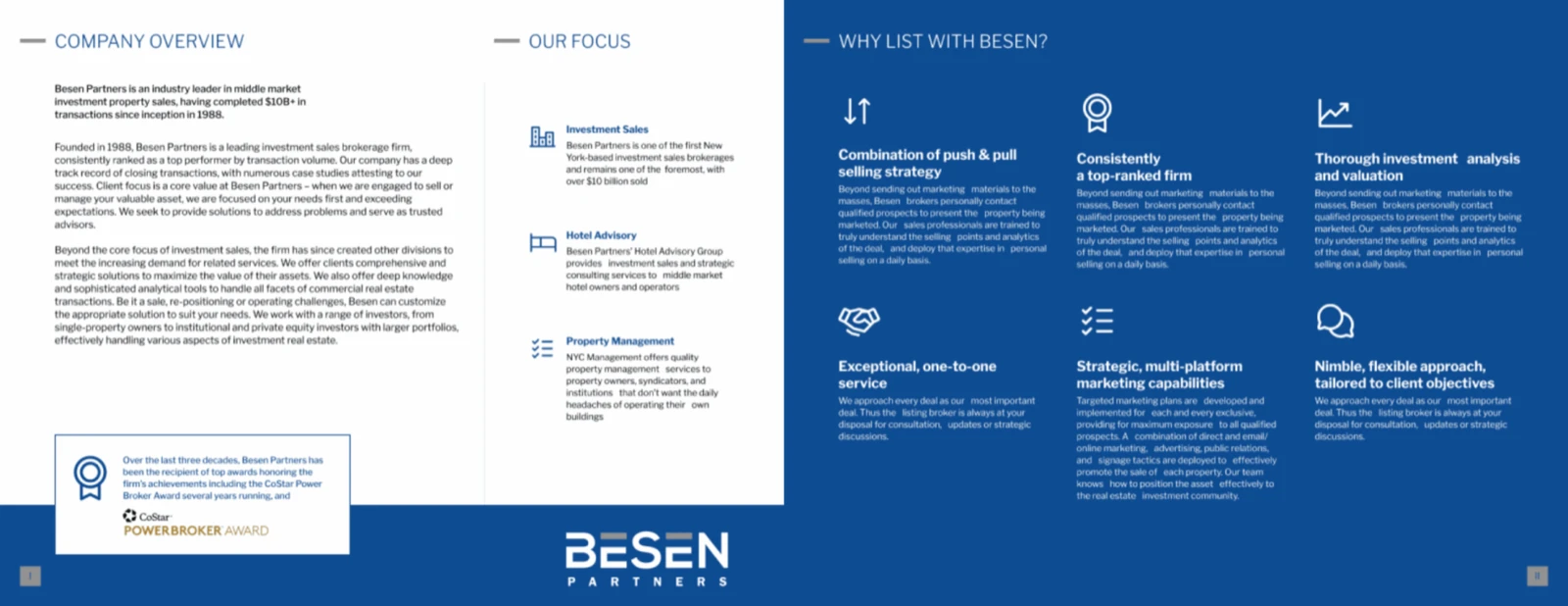
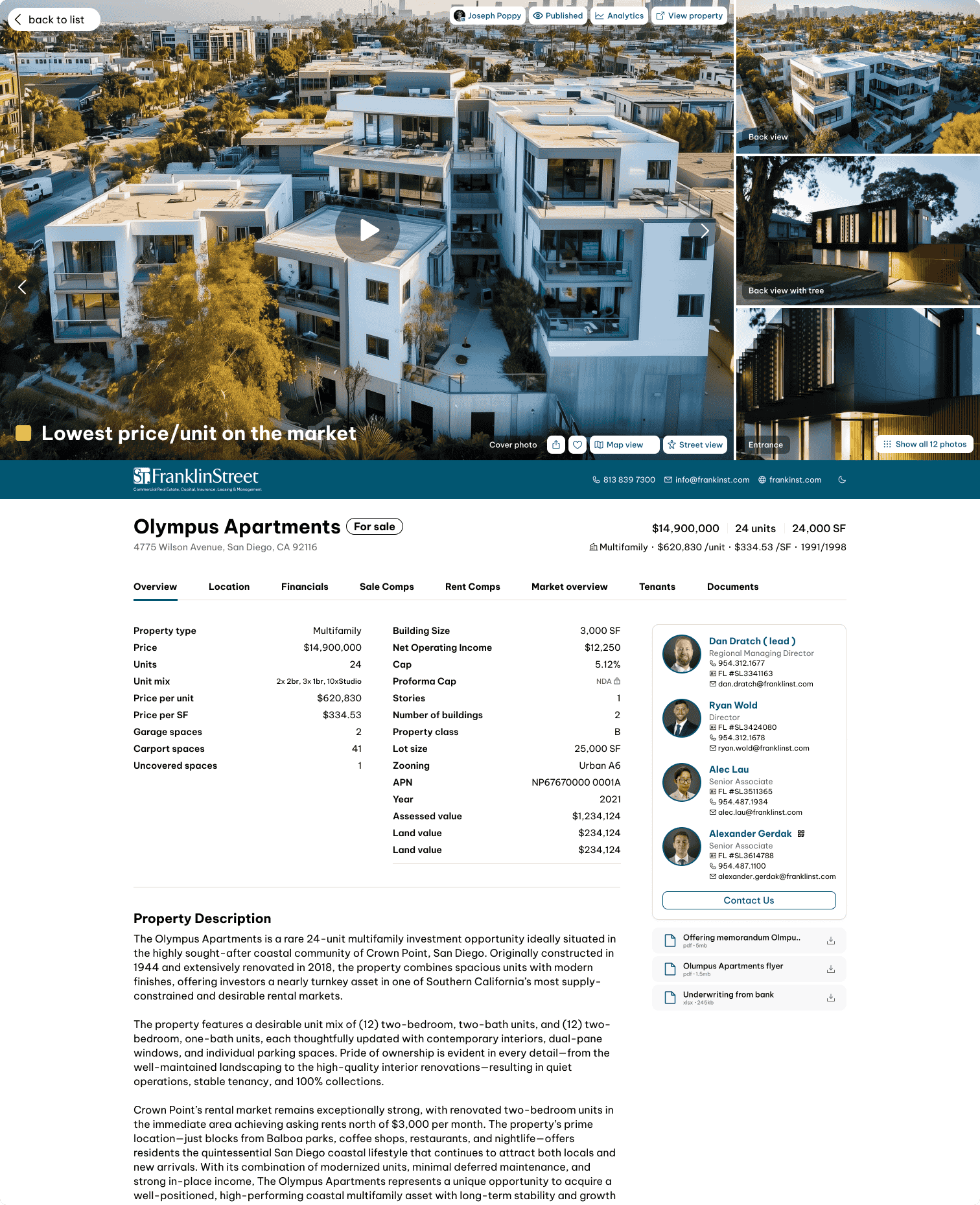
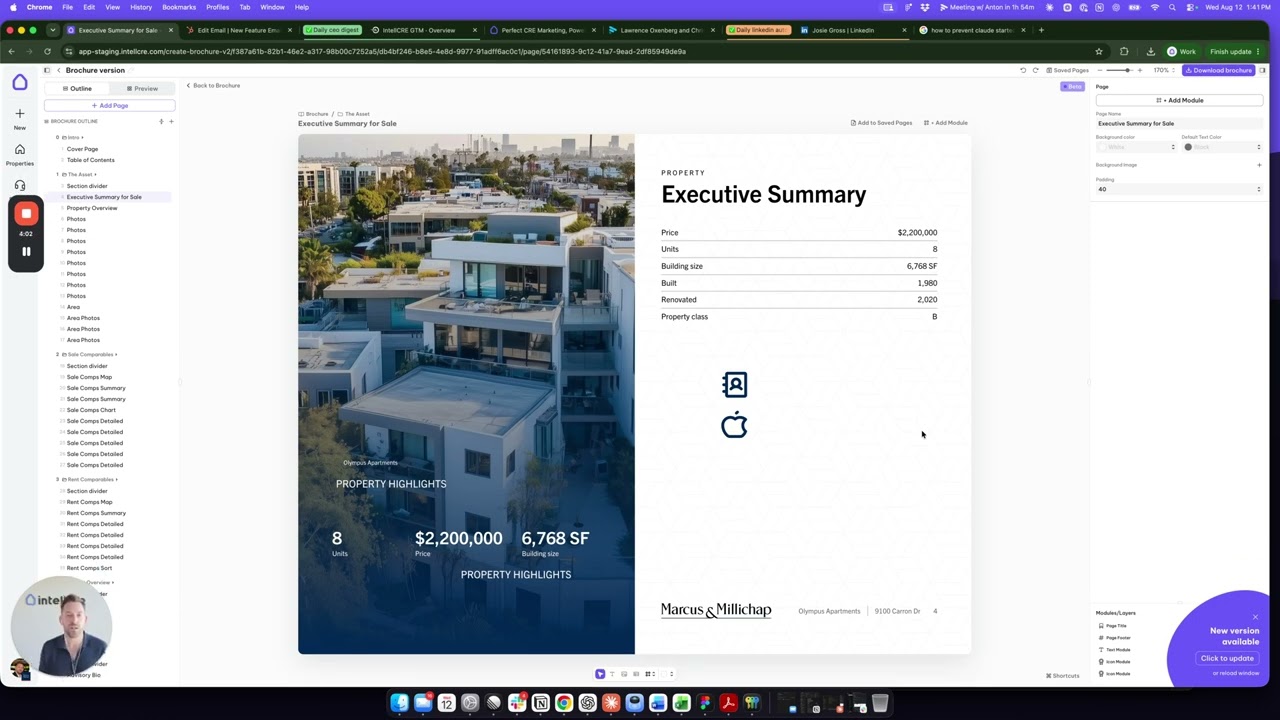
As you can see in the illustration, these are the system default pages.
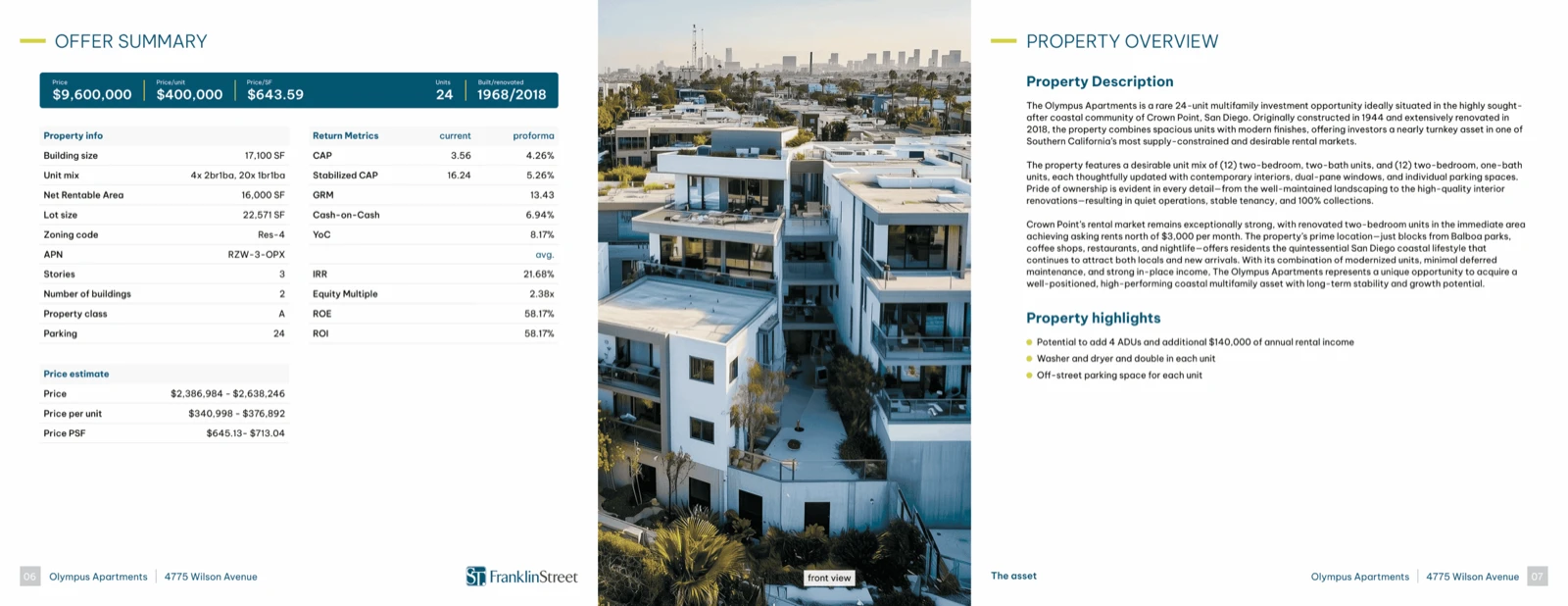
For example, I include a Smart Page that has a Table of Contents.
What it means is that that Smart Page has an Authors module there, and depending on the authors or the agents that are on that brochure, all of their information, contact information, and headshots are going to be automatically populated in the Authors module.
Then it has some CA, or some non-disclosure legal text.
Depending on what our settings are and what our non-disclosure text is, that text is going to flow in there automatically.
Then there is a Table of Contents part of the page that is again smart.
So, depending on the actual outline of the brochure, the Table of Contents will be automatically generated on that page.
In this sense, these pages are smart.
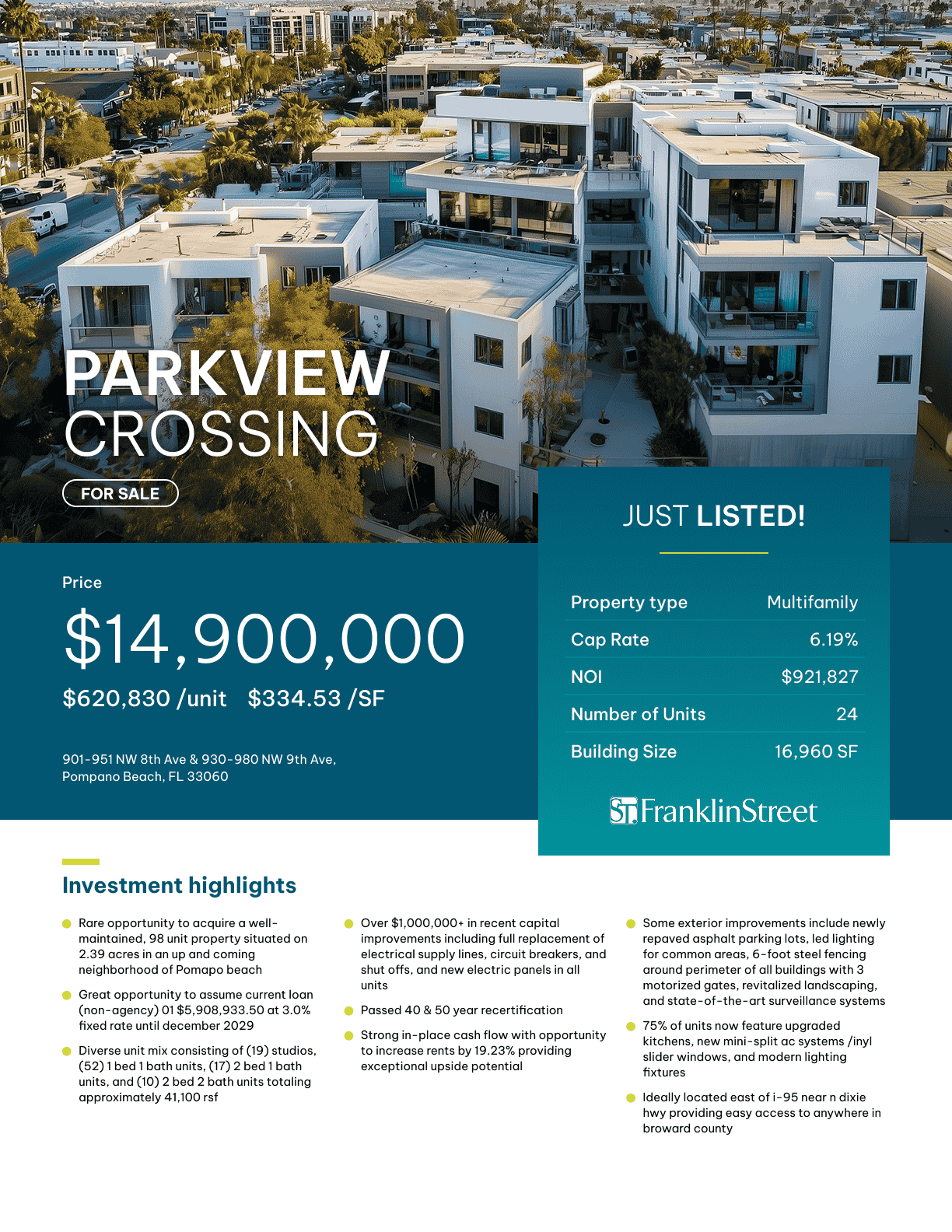
If you have the Cover Page, a Smart Cover Page, it means that it’s going to take the name of the deal and create a header from the deal name, with a subheader being the address of the deal and things like that.
Making Custom Pages Smart
What we’re going to be doing in the next step here is we’re going to enable you to create 100% custom pages and then make them smart.
In the sense that you will create your outline with all the pages that are custom, or you can use some of the default ones and some custom ones.
Then the data from the data room is going to be automatically populated in all the places where you need it in the brochure outline that you preload.
This is going to be a very key feature as far as the automation of the system goes.
Saved Pages
You also have Saved Pages here.
We’re going to be adding a live preview here very shortly.
These here, you can pick from all your saved pages.
Import Financial Pages
Finally, we have Import.
If we want to create a financial page from any financial documents that we already have in the data room, or any that we want to additionally upload here, we can just pick the sheets that we want to turn, with the styling that they have, into a financial page.
We can also do that here.
So, we reworked the Add New Page dialogue here with Blank Pages, Smart Pages, My Saved Pages, and so on.
We’re also going to be adding AI-generated pages from scratch for you very soon.
Bulk Module Editing
You can manipulate the modules in bulk.
You can edit more modules.
Let’s say I want to make sure that I am taking several modules and putting them lower on the page.
You’ll just click the header module, hold Shift, click this table module, hold Shift, click this module, and now you can use the arrows — the downward arrow to move all the modules together, or move them left or right, and things like that.
Or you can use Ctrl+ C, Ctrl+V.
Whenever you perform an action that you want to take back, Ctrl+Z now works as a functionality across the entire brochure builder as well.
Copy and Paste Across Pages
One thing to note is that Ctrl+C and Ctrl+V works across pages.
If I want to have a table like this on the following page, I can do Ctrl+C, go to the following page, and I can do Ctrl+V.
I’m going to paste the same table from the previous page onto this one.
This works across pages as well.
Super useful, and I cannot wait to hear your feedback for all these features and to basically see what else we can do to make this faster, smarter, and more convenient.
A Competitive Advantage for Your Business
Ultimately, we’re giving you the engine for launching your deals and your deal marketing that is going to create a significant competitive advantage for you in your business.
We’re going to follow up with more updates.
Let us know if you need any help migrating your old workflow from the old builder to the new one, setting up saved pages, or setting up new outlines in the new builder.
As you can see, you’re not limited by any customizations that you can do, and you can create world-class quality marketing very easily and very quickly here in the IntellCRE system.
Let us know, and see you in the next feature update.