

New Features for the IntellCRE Brochure Builder
Faster and Better Brochure Creation
Hey everyone, Anton here.
As you know, we keep racing to deliver the remaining features for the new brochure builder and then automating the flow so that you can create brochures faster and better moving forward.
Today, I just want to tell you about a few fresh features that we’ve released for you.
The first one is the AI Enhanced Photo feature directly in the photo editor.
The second one is that we’ve added more modules: a Table of Contents module with full customizability and an Authors module with full customizability that you can now place anywhere in your brochure and fully customize.
Finally, we’ve added a feature where you can import data into a table directly in the page builder.
Let’s look at these features, starting with AI Enhance.
AI Enhanced Photos
Whenever you have a photo that’s bad for any reason and you want to make it better in your brochure, you simply click to edit the photo and open it in the photo editor.
Up here, we have an AI Enhanced Photo button.
When you press it, it takes roughly one minute, depending on the photo, and it’s going to suggest precisely the settings for the photo to make it better.
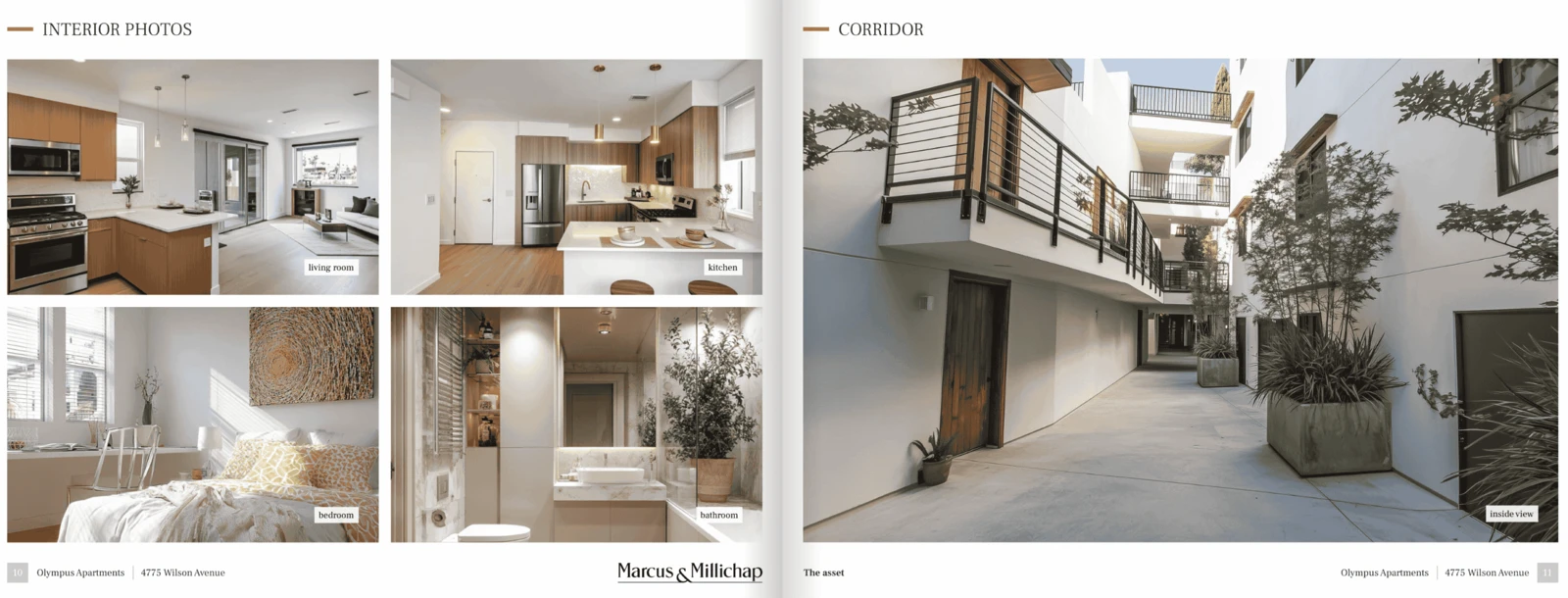
You will see a before and after version of the photo, so you can see whether we want to keep this blurred, dark photo that we had before or whether we want this better version of the photo.
Basically, AI enhancing.
We’re not doing anything artificial to the photo. We’re simply playing with the light and getting rid of anything that’s really damaging the photo and making it much better.
That way, when you include a photo like this in your brochure, it looks much better.
I’m going to, of course, go with the after here.
That is the AI Enhanced Photo button that’s available directly in the photo editor now.
New Table of Contents Module
Now, let’s look at the new modules that we’ve added.
I’m going to go to New Page.
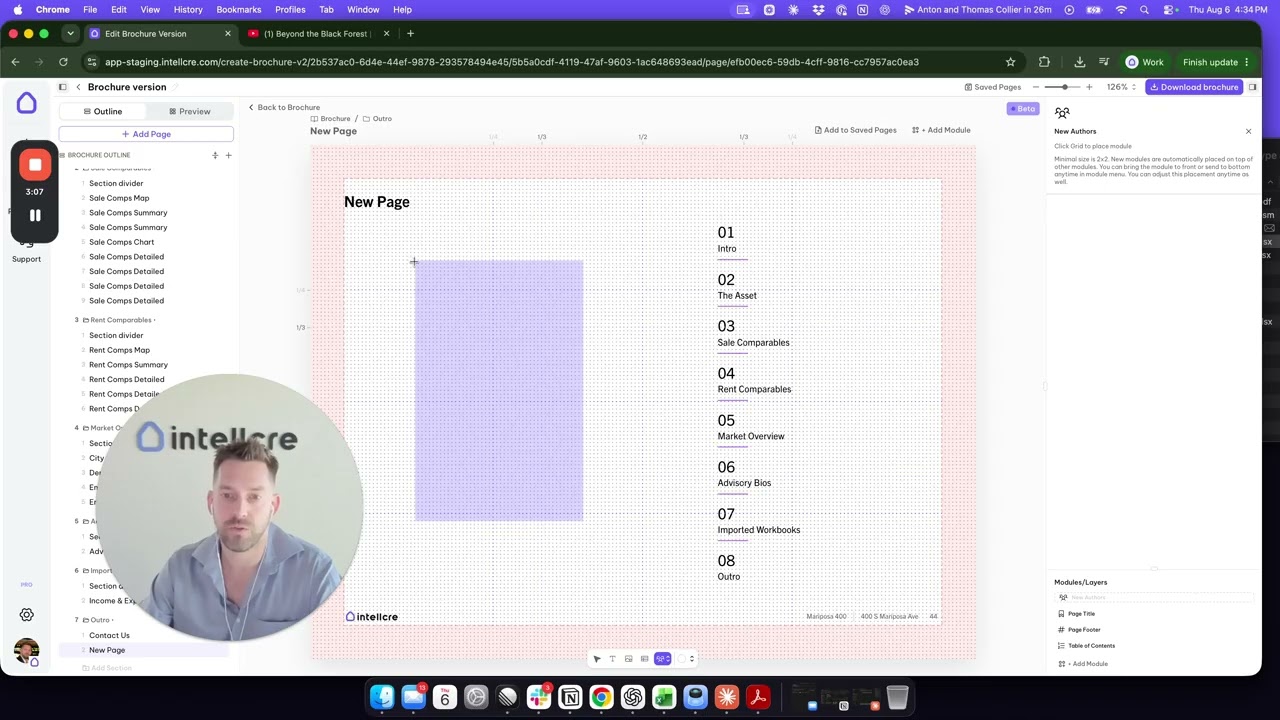
In Add Modules, you’re going to see that we’ve added a Table of Contents module that you can place anywhere in your brochure.
This is basically a dynamic table of contents for your brochure.
You can control the style of the numbers on the right here, including leading with zero, simple numbers, and things like that.
You can control the color, font size, placement, and all of that.
We can also control the table of contents text — these text blocks that we have here, including size, color, and all of that.
We can also control the separator here. Here we have these gray lines. Let’s make them this color.
You have all the settings over here, including background, border, layout, and all of those settings for the Table of Contents module.
New Authors Module
We’ve also added an Authors module.
In the modules, we can add authors.
I’m the only author on this brochure, so it’s just me.
But you can see that here again, on the right side, I have the list direction — vertical versus horizontal.
I can make the photo appear or disappear, rounded or square.
I can also control the size, position, and gap.
I can choose the styles, fonts, and all of that, including colors for my name, position, contact information, and more.
So, these two modules are already there for you.
Also, icons from earlier this week.
Import Data Directly Into Tables
Finally, whenever you have a table in your document, in your brochure, you have a table.
This module now has a new feature down here that you can use to basically import data.
When you click it, you’re looking at all the files in your documents, in your data room in the system.
You can choose which spreadsheet to import the data from into this table.
A good use case for this is that you’ve customized and built a custom page here in the system that you really like.
Maybe a custom rent roll page or a custom executive summary page or something like that.
Basically, what you want is for every deal that you’re running through the system, that you’re creating a brochure for, to have the data from wherever you have the rent roll or the executive summary data in your uploaded files.
You want to pull that data into that table.
Before we make it fully automated, so this happens without you actually doing anything, this is an option you can use in the meantime.
Let’s say this is my rent roll saved page, and this page appeared for my new deal.
Basically, I’m like, “Okay, I want to get my rent roll data in here.”
You click here and choose where the rent roll data lives in your data room, and then you import the data directly into this table, preserving the formatting, preserving everything.
That is a new feature as well.
New Cover Page and Brochure Migration
We hope you like the new features.
In fact, perhaps I should also mention this is a new cover page.
Now we can add modules onto the cover page.
The cover page is migrated for you.
The table of contents is migrated for you.
The section divider pages are going to be migrated for you.
I believe the last page is also migrated for you, or will be migrated for you later this week.
What’s remaining are the comp pages, so that they are migrated to the new builder with basically everything that is on every page composed of modules in the new builder.
You can fully customize everything based on your liking and based on your needs.
Of course, inline edits and all of that are available in the new builder.
With that, the migration is going to be finished.
Outlines Coming Next
What’s going to be added next, in fact later this week, are outlines.
You can assemble your saved pages together with system default pages and assemble them into outlines in the new builder.
Then just load up those outlines whenever you’re starting to build a brochure in the system.
Now you can import data into various places, into various modules on various pages.
Automating the Data Mapping Workflow
In the next step, we’re going to make that more automated so that it’s going to be automatically mapped from your data room to those saved pages, to those modules, or to those outlines.
Basically, completing the workflow automation as much as possible.
Looking forward to your thoughts, insights, and feedback, and we’ll follow up with more feature announcements shortly.
Bye.