


Creating a Custom Page from Scratch in the IntellCRE Brochure Builder
Starting with a Blank Page
Hey everyone, in this tutorial, we’re going to look at how you can create a custom page from scratch in the new brochure builder in IntellCRE.
Basically, when you’re in the brochure builder and you need to add a page, you click Add a Page.
In this tutorial, we’re going to look at what happens when you click Add Blank Page.
Basically, you land on a blank page where you only have the header and the footer.
In order to build any page that you need, and you’re not using the quick layouts but you’re building this from scratch, you can basically add all these modules by clicking Add Module, such as text modules, table modules, image modules, icons, table of content, various geometrical shapes, lines — horizontal, vertical, rectangle — maps, Authors module, and many more that we are going to be adding.
Customizing the Header
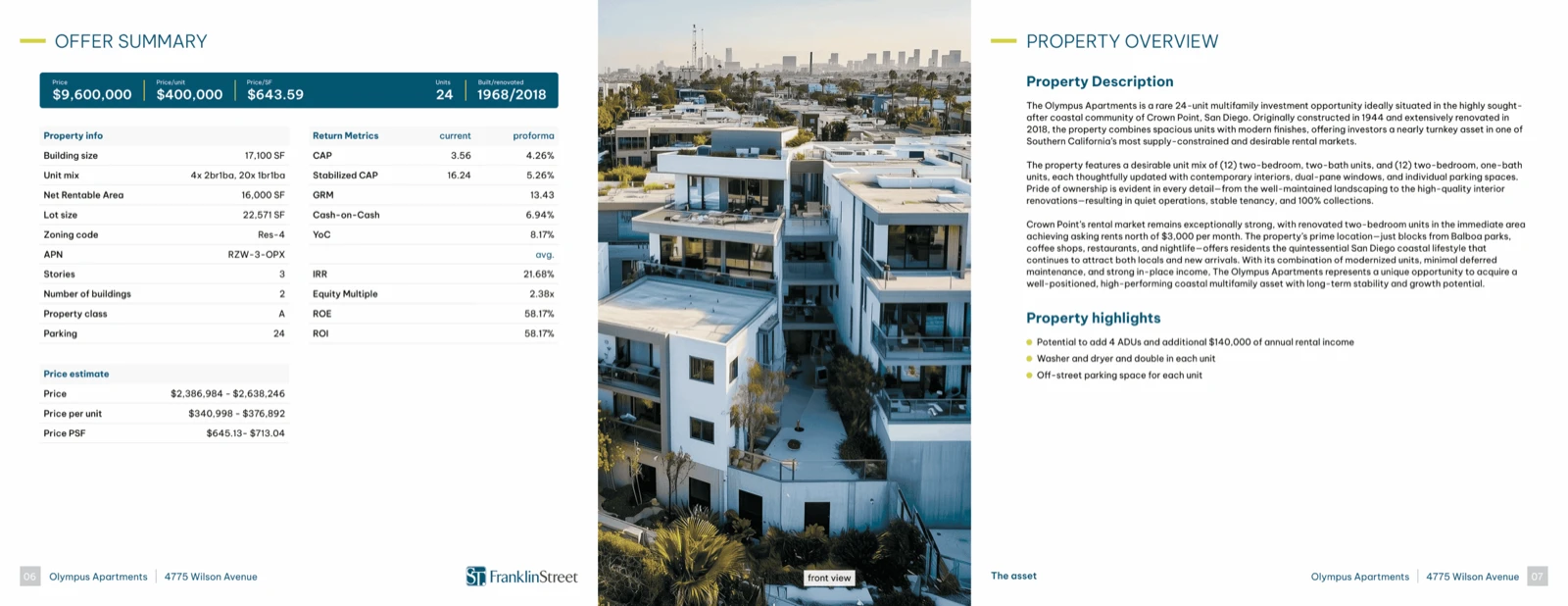
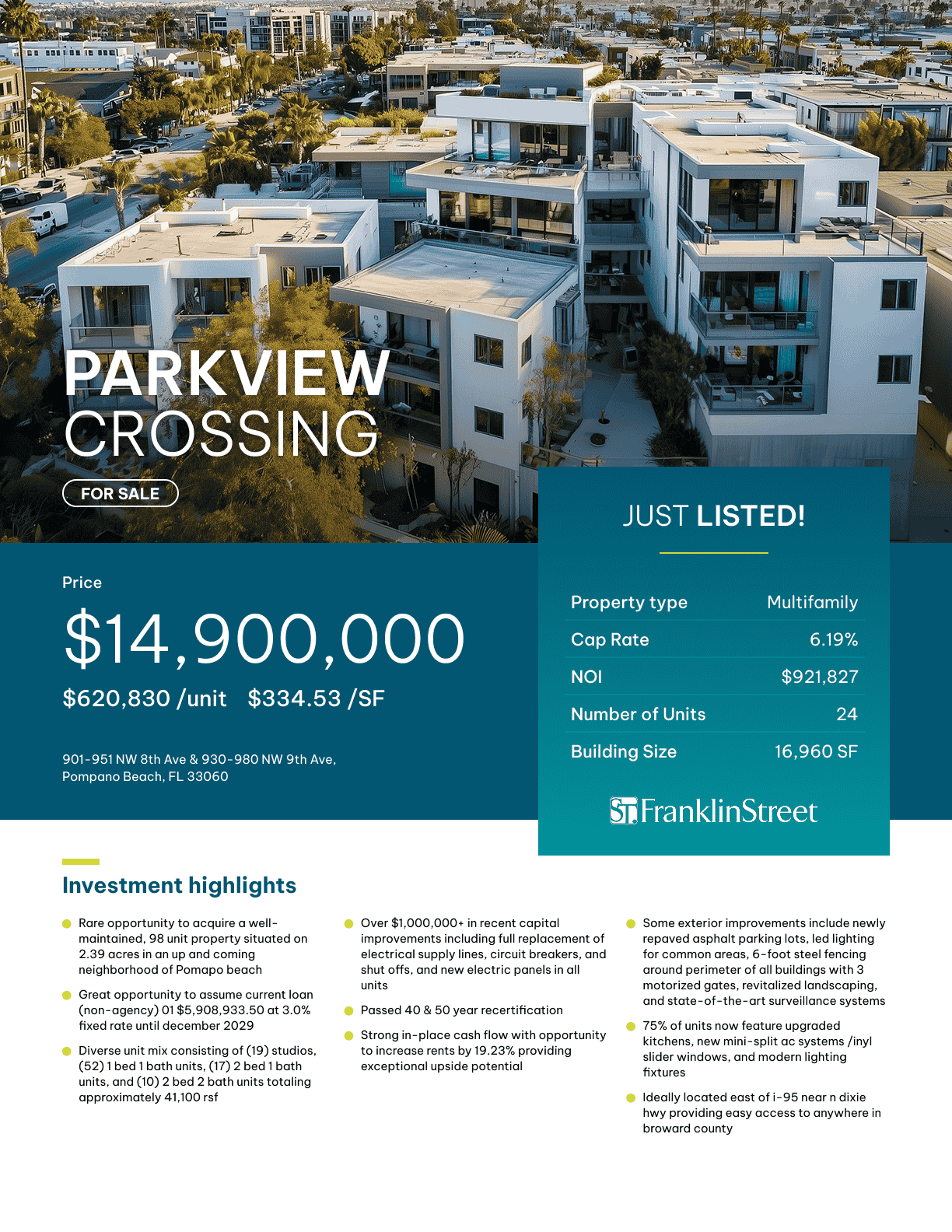
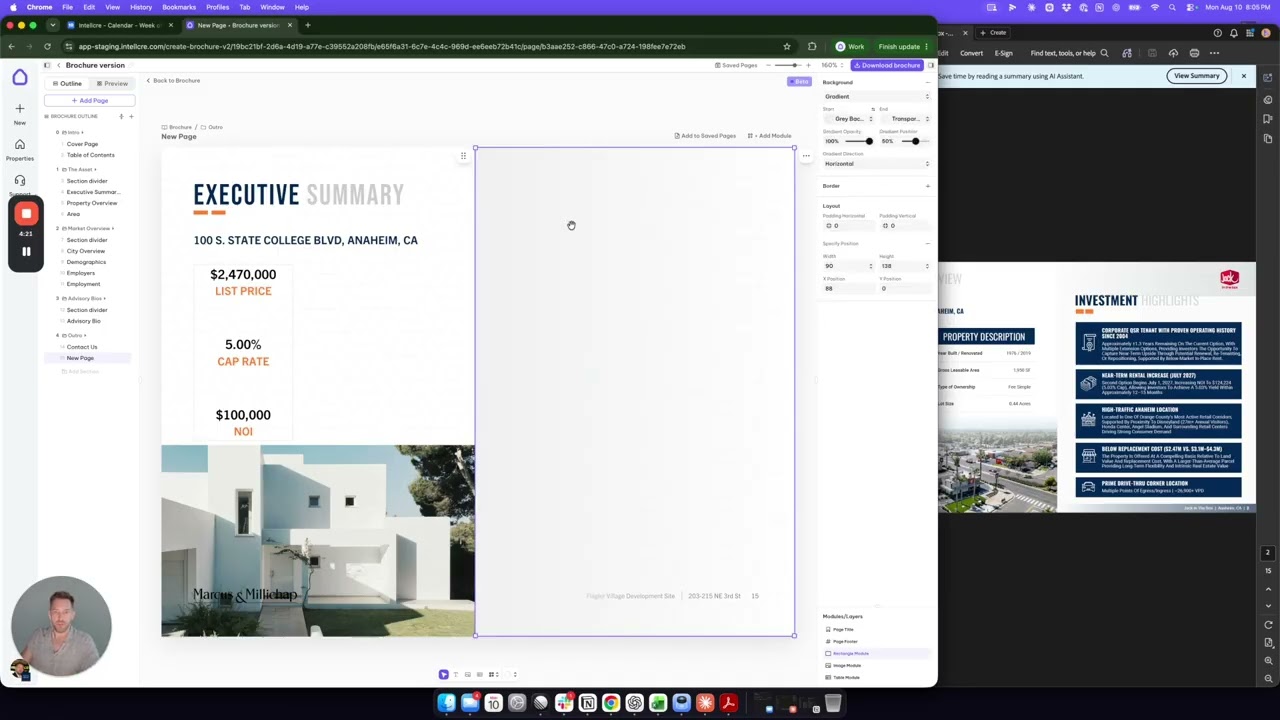
Let’s say that we want to build a page like this one.
What we’re going to need is, after we confirm that our fonts and branding are in the system, so we have our colors and everything, we’re going to click and start customizing the header.
This page is split into two pages.
I’m going to have the header span just half of the page.
By clicking on the module, you have settings, global settings for the modules, such as text size, text font, alignment, font weight, all of that.
But by selecting a certain text within that text module, you now have selected text options, and you can override the global settings.
You can make a certain text smaller, a different color, a different font weight, different letter spacing, and things like that.
Background and Border Settings
Every module also has settings such as a background and border that, if you need, you can add.
For the background, you can choose between solid or gradient backgrounds.
You can choose the colors for the start and the end of the gradient, such as this.
You can choose whether you have a horizontal or a vertical gradient with this option.
Then you can choose the gradient opacity.
You can also choose the gradient position and things like that.
For the border, you have all the options for the border.
So if we have a green border here, you can choose the border location — all or just on the top or on the bottom, and so on.
The border radius is basically how curved the border is.
And you will see now I have a green border here.
I’m going to get rid of the border, and I’m also going to get rid of the background.
This is a text module that we edit.
The text module has some quick options down here, such as font size, font weight, letter spacing, alignment, and so on.
Also, color of the font and all of that.
Adding Modules to Build the Page
Now we’re going to start adding modules here to build this page.
In order to have this second half of the page be a different color, what we’re going to do is actually add a rectangular module and place it over the other half of the page.
We’re going to add a border for this module that’s going to be gradient, starting with a gray color and horizontally going into sort of the white color.
So this is what we’re going to have, like that.
Creating an Investment Highlights Header
If we need another header module, we can actually build this from a text module.
We’re going to have:
Investment Highlights
We can make this larger like that.
We can make this bold.
We can make this gray while keeping this our primary color.
Like that.
Using the Line Module
If we want to resize the modules, we can add a line module.
Using the line module that I added here, you can control the stroke width, the style, color, and the direction — horizontal or vertical — with all the other layout, border, and background settings as well.
Copying and Pasting Modules
Once you have a module, you can use Ctrl+C and Ctrl+V.
Or, while holding Shift, you can select a module, and while holding Shift, you can select another module.
So you can select the whole group of modules.
Once you have the group of modules selected, you can do Ctrl+C and Ctrl+V, and now you can paste those modules anywhere in the document, just like that.
While you have a module clicked — selected, sorry — you can use the arrows to move it up or down.